 download the apps!
the docs
download the apps!
the docs
 >
usage
>
using veadotube
>
the scene editor
>
usage
>
using veadotube
>
the scene editor
the scene editor 
for those coming from veadotube mini or other programs, the scene editor is a good starting point, as it’s where you can import pre-made avatars, link them to any input you want, and position them around so they can be streamed to OBS or any other program.
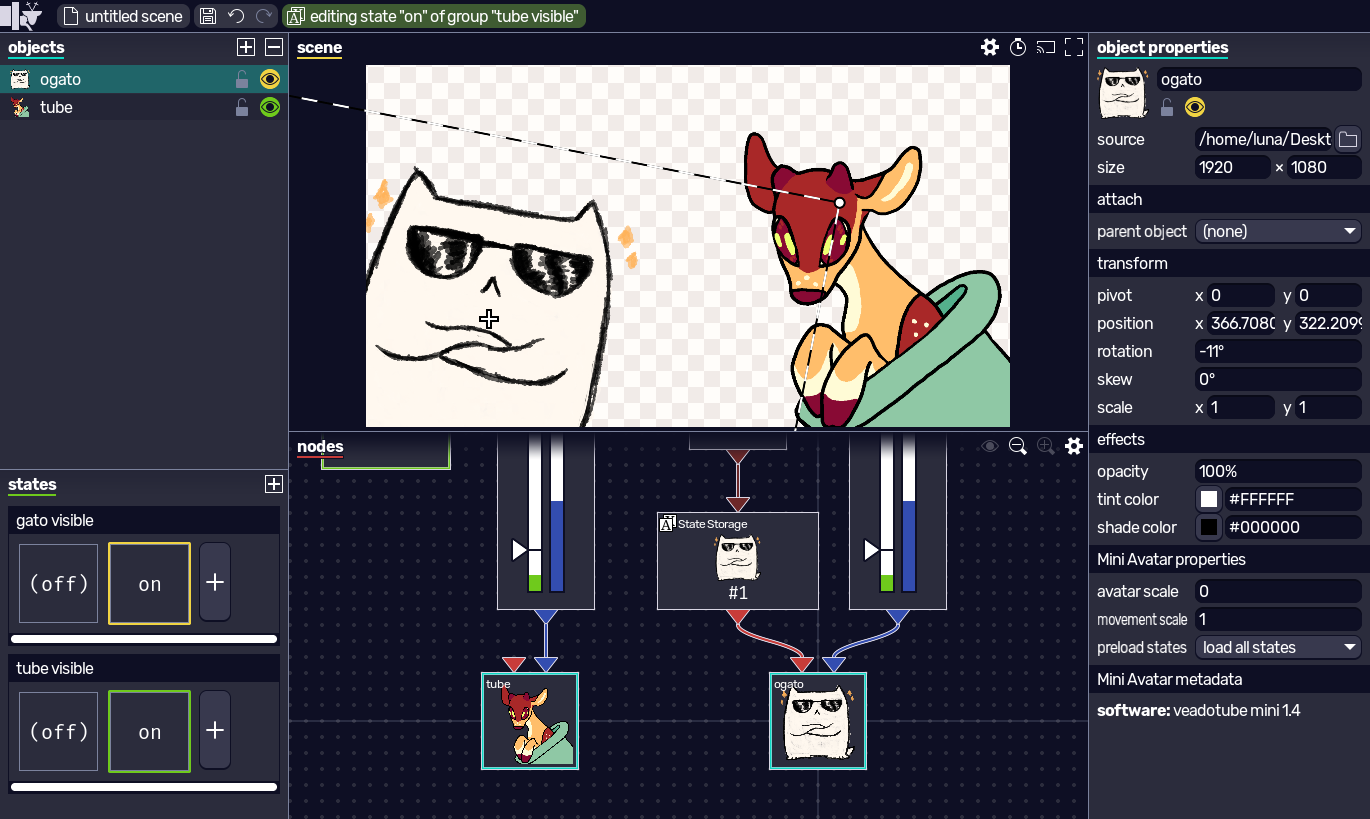
panel overview
- scene: preview and configure the current scene. you can set the scene appearance as well as stream it to other programs and/or hide the program UI.
- objects: manage and reorder imported objects (avatars, or image files) in this scene file.
- object properties: edit selected objects, letting you set exact positioning numbers or specific properties associated with certain avatar types. you can also attach an object onto another, letting you add accessories to avatars.
- states: manage state machines, where you can create states that override object properties.
- nodes: manage nodes. imported objects are exposed here, as well as state machines, so that you can control their inputs through the node system.
importing an avatar and using it
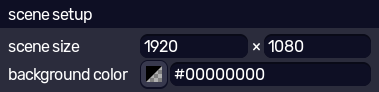
before using a scene, make sure you’ve set the correct scene size in  over scene. the correct size depends on the size of your stream, or how big you want to render the avatar themselves, and will be the size of the video that gets sent to your streaming software. the scene size value is saved with the scene file.
the scene editor calls an imported file an object, which can either be an avatar file or a plain image file. to import an object, press  in objects and select a file. you can alternatively drag a file to the program window and it’ll add it to the object list.
note that the scene editor does not save files inside the .veadoscene file. if you’re sharing a scene file, you must share your images and avatar files with it.
when importing an object, it’ll show up in objects. the topmost object in the list is rendered in front of the others, and you can control the visibility of each.
over in object properties, you’re able to configure your avatar further, for example:
- change the file source of the avatar;
- set the size of the bounding box;
- attach it to another object;
- move, rotate, scale it around;
- set how it blends on screen.
note that a new object is positioned at the center of the screen, with a bounding box of same size as the scene, and the pivot at the center of the object. also note that in veadotube, positive X is right, and positive Y is up.
a new object will also spawn a new node in nodes that represents the object’s node inputs and outputs, as well as the default nodes that accompany it. each different avatar file type has a different set of node slots, depending on its capabilities. while this guide will talk about the default nodes that come with each object type, you can also refer to the node system for more info on how the node system works, and which node does what.
in a scene, you can also create states in states to override most of the properties in object properties, letting you, for example, control an object positioning/visibility through nodes. refer to states and state groups for more info on those.
after setting up your scene, you can stream it to other programs!  will simply hide the program UI and present the scene in a way that an external program can capture the veadotube window. if said capture supports transparency, it’ll be supported as long as you’ve set the scene background opacity to zero; otherwise, you can set the background to e.g. green so that you can chroma key it later.
 lets you send the current video without needing to capture the program window. on Windows we support Spout; on Linux, PipeWire; and on macOS, Syphon. you can refer to the OBS guide to understand how to capture this stream depending on your operating system.
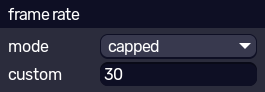
you can also configure the scene frame rate through  , setting vsync/uncapped, the exact frame rate you need, and so on.
object file types
below is a list of supported object files, how they get imported in a scene, and how they can be configured.
image file (.png, .gif, .webp, .jpg, so on)
image files are the simplest objects. in object properties, you can set how it fits onto the object bounding box (preserving the aspect ratio or not), and if it’s gonna render pixelated or not. since you probably imported an image to attach it to another avatar, you can do that through the attach menu in the same panel.
if you’re using a static image, that’s it! if it’s animated, it’ll play on repeat automatically, but you can configure that behaviour through nodes.
the node that gets spawned has an image time input, which controls the current time in seconds of the image (for example, inputting a number of value 1 will set it to show the frame at the one second mark of this animated image). if you don’t set an input, it’ll play automatically, and the image time output will tell you the current time. the image duration output also tells how long the animation is.
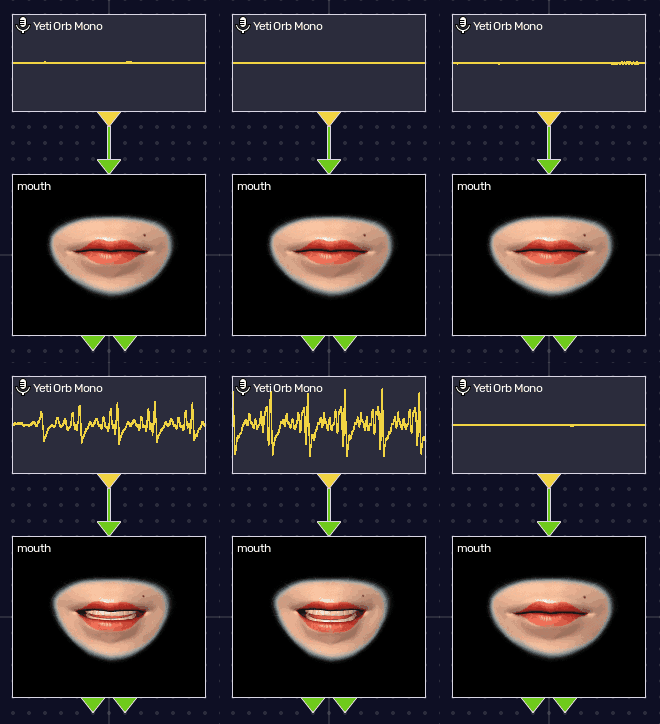
an example of what you can do with animated images in a scene includes a .gif that reacts to the microphone volume. say you have an animated image where each frame is a mouth, starting with it closed and then slowly opening until it’s fully open. by adding a Microphone node and connecting its output to image time, the volume value (0 to 1) is used as the current time of the animation in seconds.
veadotube mini avatar (.veado, .veadomini)
veadotube mini avatars can be created with veadotube mini or with the mini editor in veadotube. the same settings veadotube mini has for controlling the avatar/movement scale and whether states are preloaded in memory or not are available in object properties.
a mini avatar node in nodes always has only two inputs: current state and voice activity.
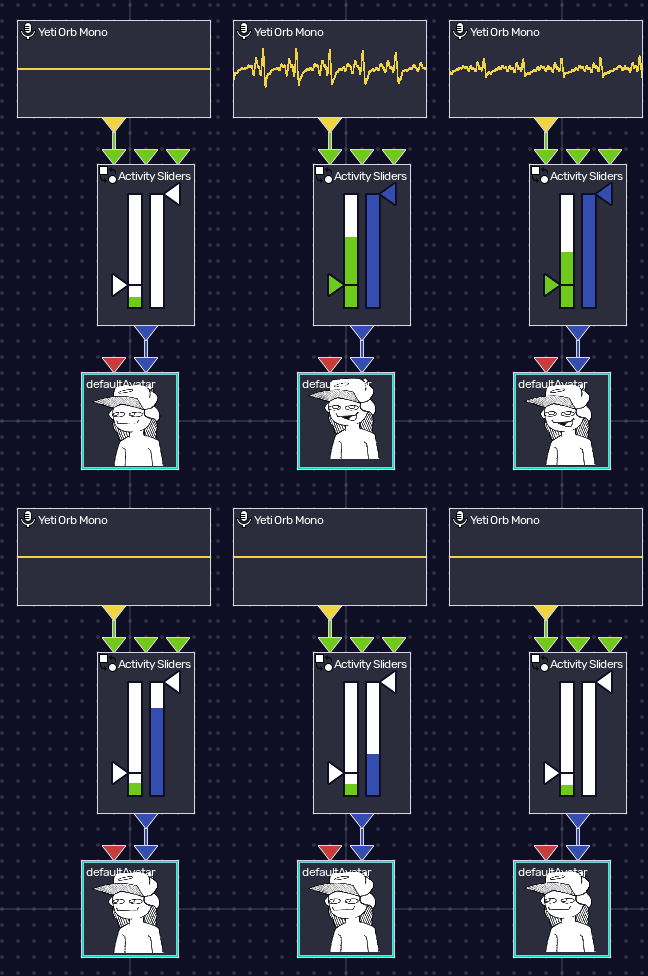
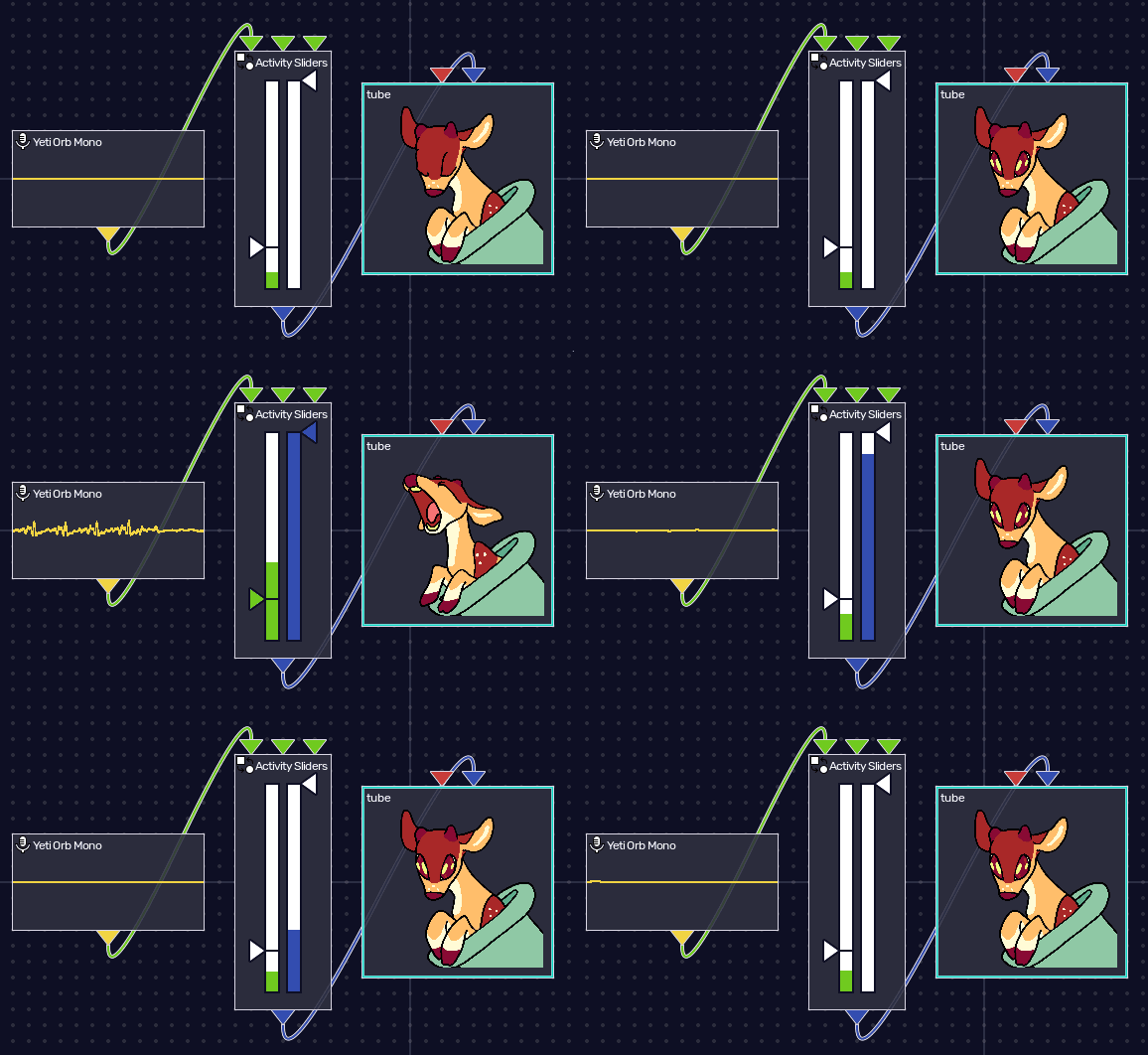
voice activity controls whether the avatar should open its mouth, accepting a boolean value. true is for open mouth and false for closed mouth. by default, the scene editor attaches it to an Activity Sliders node connected to a Microphone node.
to use the default layout, you must right-click the Microphone node and select your desired microphone, and you can adjust the sliders in Activity Sliders similar to how you would in veadotube mini (left green slider for minimum volume, right blue slider for decay time). the Microphone node will output the volume level as a number (from 0 to 1) to the Activity Sliders node, which will then use the provided slider heights to turn that number value into a boolean value, and feed it to the avatar.
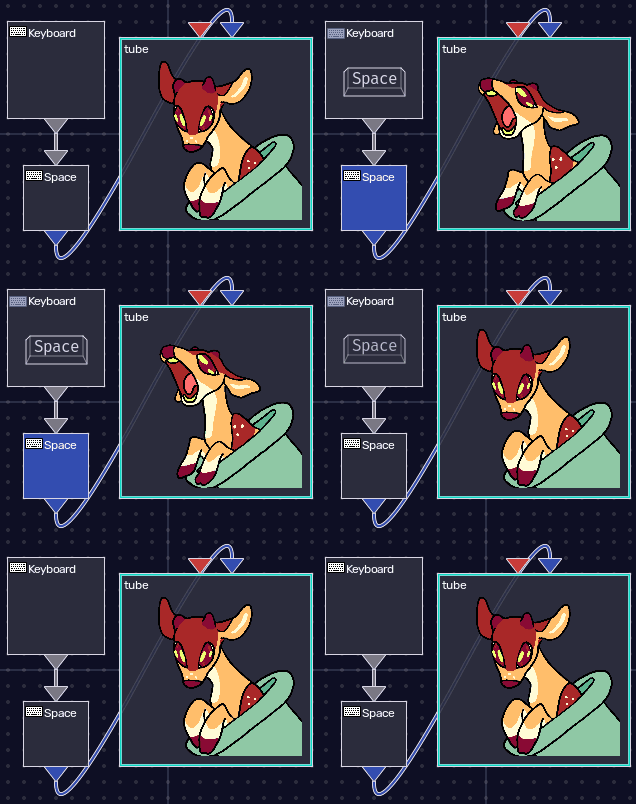
you can set the voice activity input to anything that outputs a boolean. for example, if you wanna control your avatar through a keyboard key, you can create a Keyboard node, right-clicking it to create a Key node, right-clicking it to select which key to use, and connecting its output to voice activity, and now your avatar mouth is controlled by the keypress.
alternatively, you can create an And node and connect both the Activity Sliders output and the Key output to it, and then its output to voice activity input, and now you made a push-to-talk system!
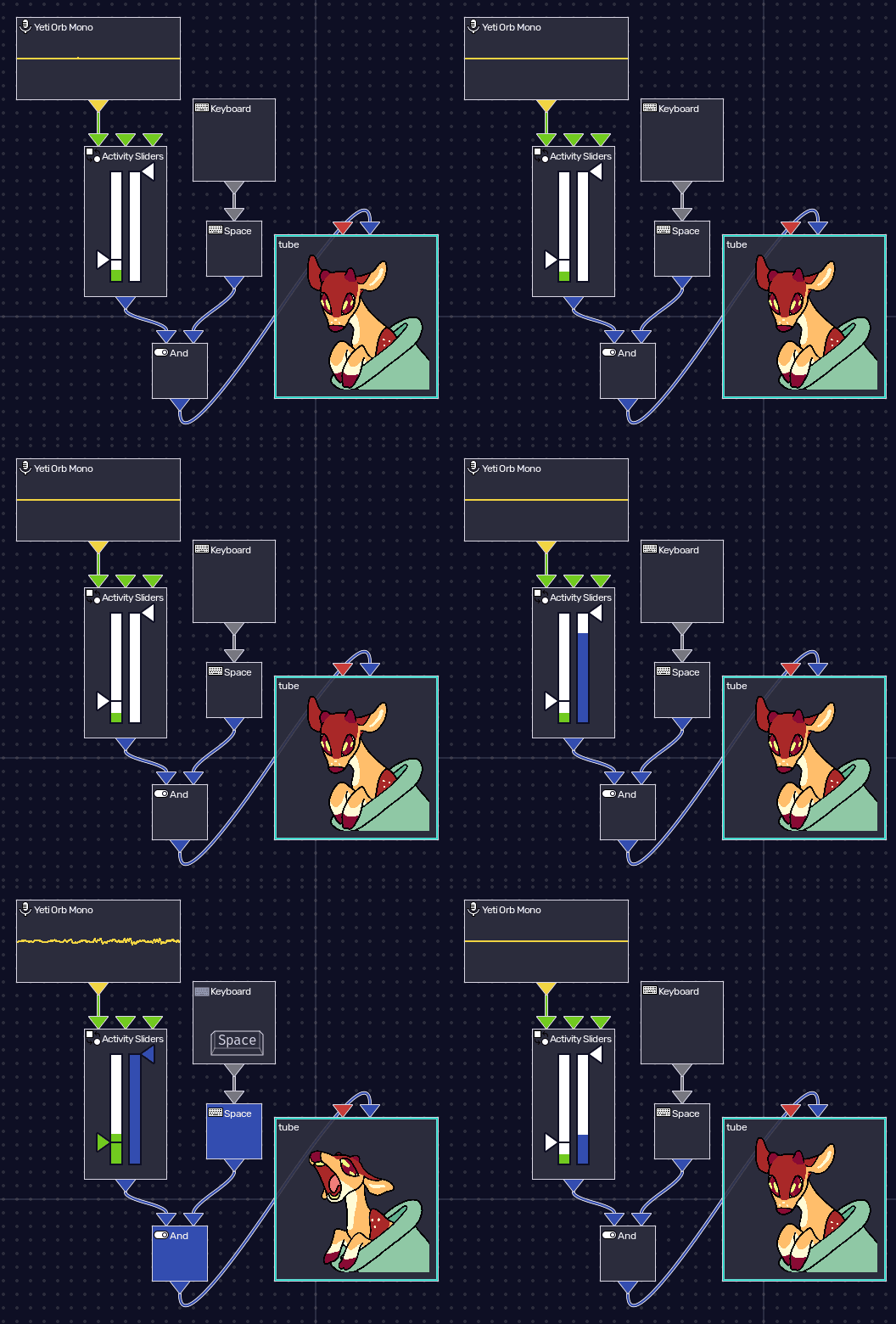
the other input, current state, sets the state which should be selected to show up. if the avatar does not have more than one state, this input is ignored. its input value is a string, so anything that outputs a string will work, as long as the outputted string is a valid state name. invalid state names are ignored.
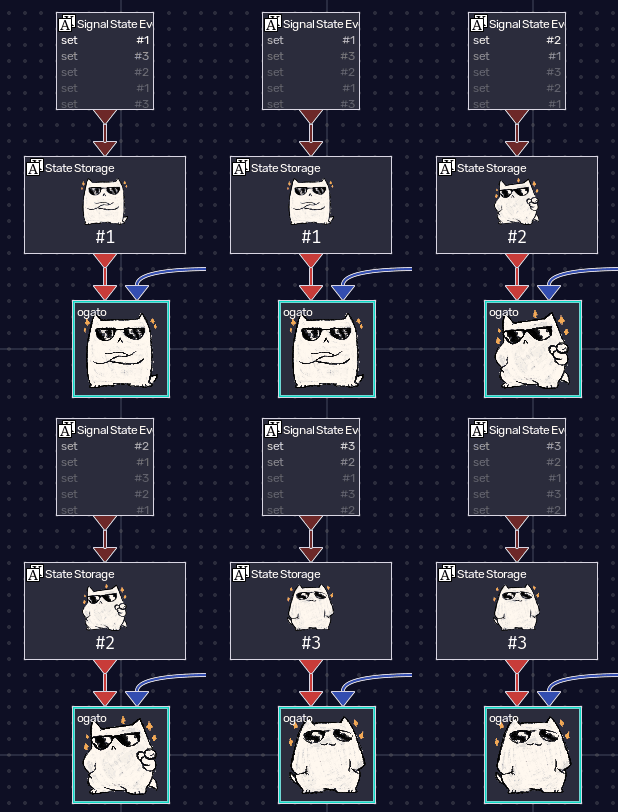
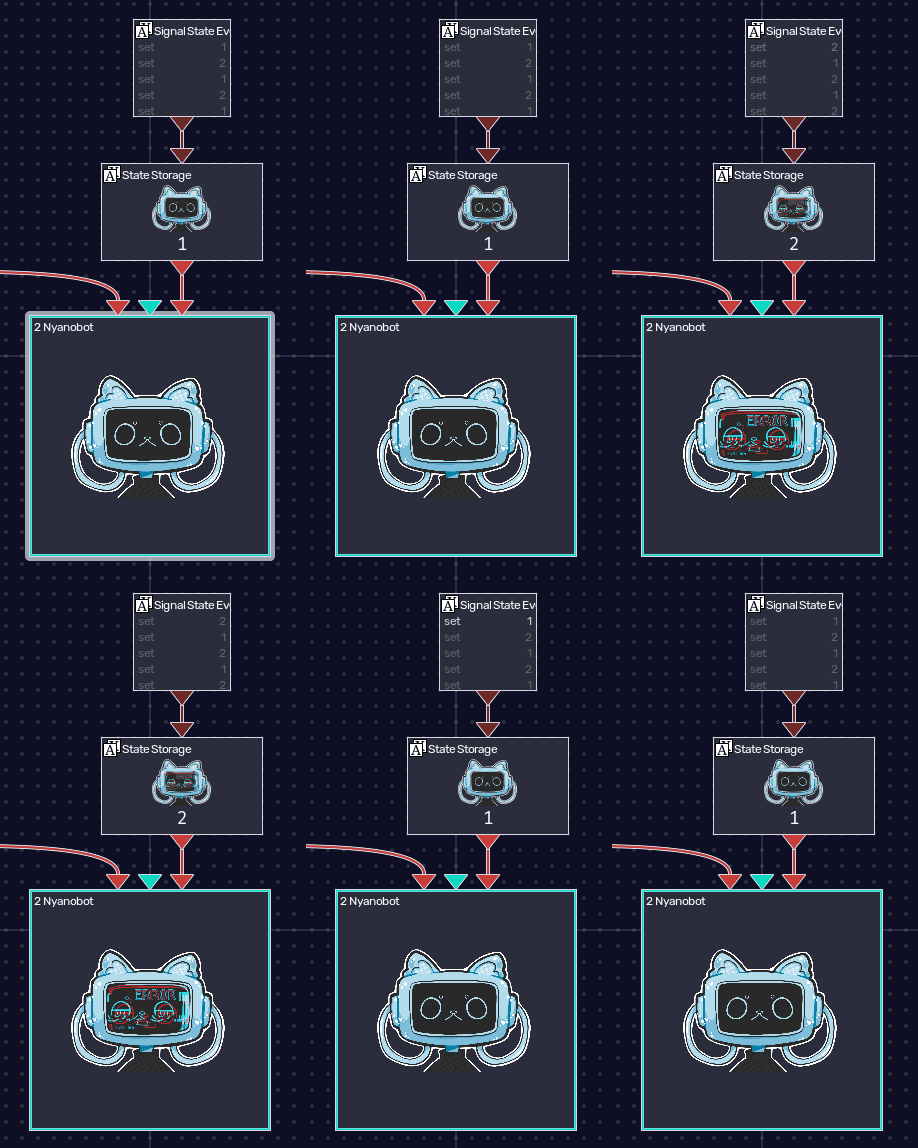
by the default, the scene editor attaches it to a State Storage node connected to a Signal State Events node. the latter contains all pre-configured shortcuts saved with the avatar, but you can right-click it to customize those. it sends state events to the State Storage node, which does the job of stacking push-pop states (the ones that work by holding a key or toggling it) and outputting a string that represents the top one in the stack.
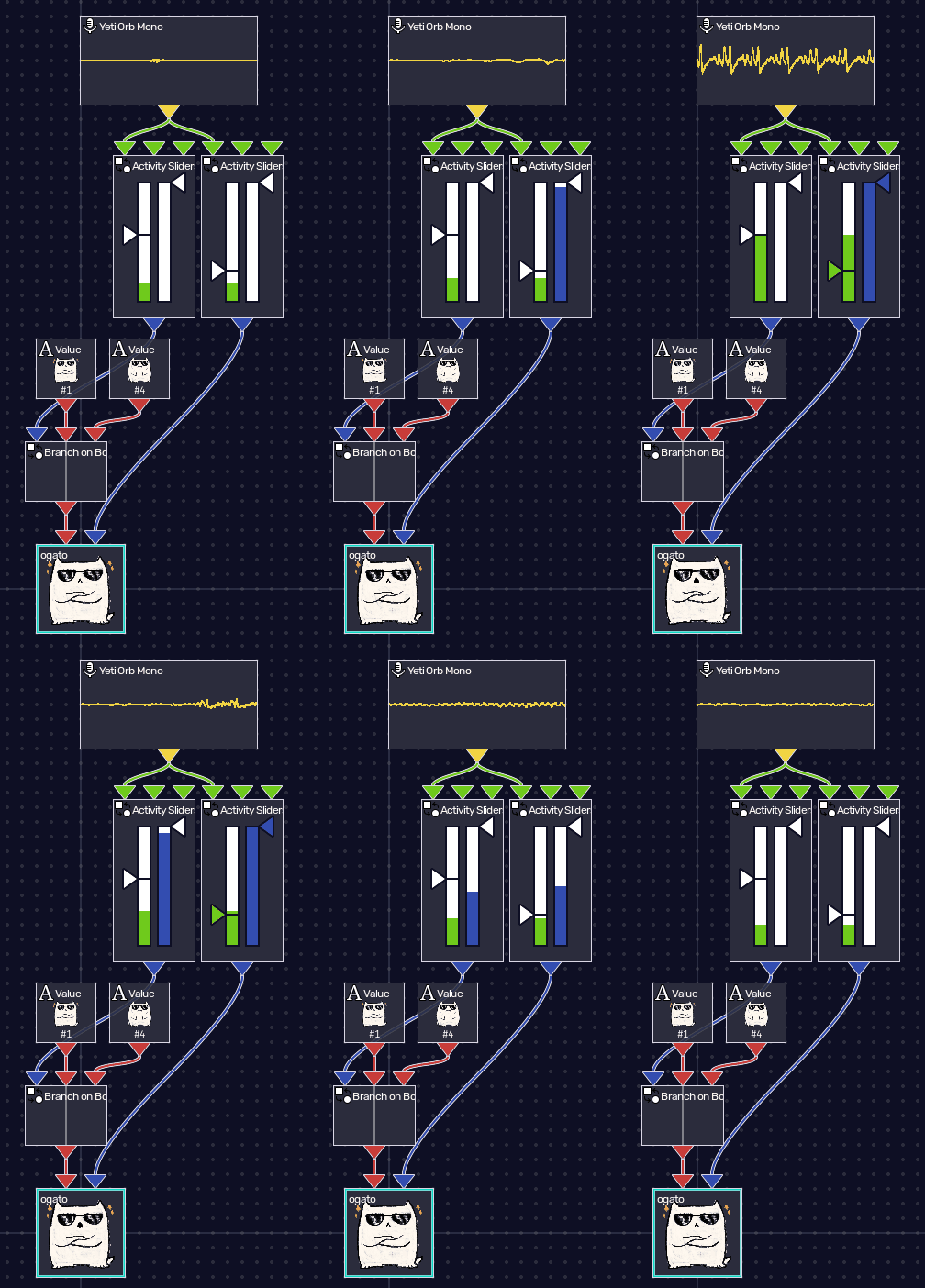
you can also use other nodes that output strings. for example, you could add a Branch on Boolean node, which has 3 inputs: a boolean, the value the node selects when the boolean is false, and the one for when it’s true. that node can be used with two string Value nodes, and the boolean in question could be another Activity Sliders with the minimum volume a bit higher. change the string values to be each different state, and now states change when you scream!
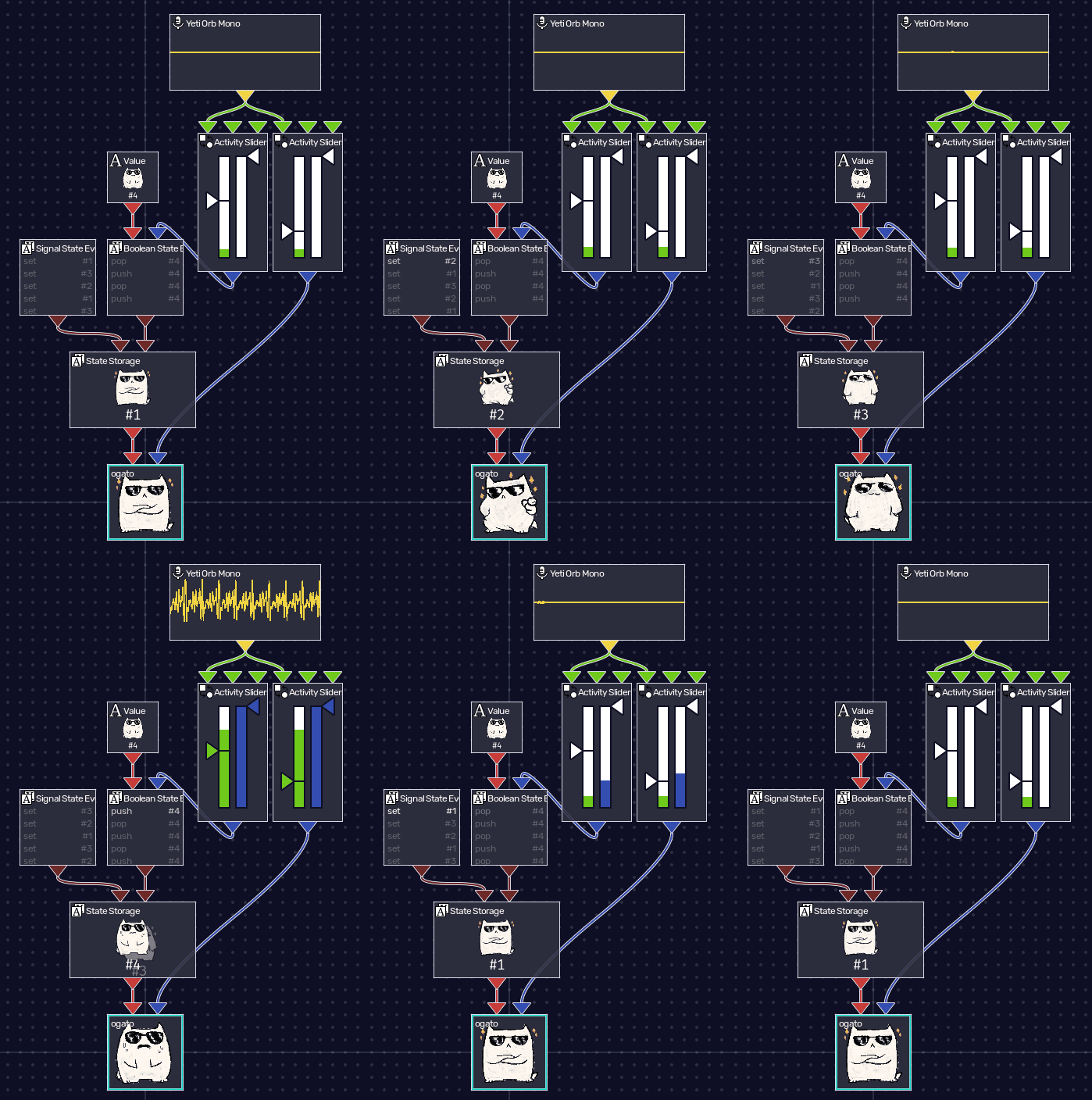
alternatively, you could add a Boolean State Events node, connect the string Value that you’re using for true to the state value input, the keyboard key to the boolean value input, right-click it to set it to the equivalent behaviour (in this case, push and pop), and connect this new events node to the original State Storage. now your screaming works together with the other shortcuts.
a mini avatar cannot have more than these two inputs, as mini avatars are meant to be simple and work with veadotube mini. if you need more features, you have two paths:
- convert your mini avatar to a dynamic avatar (or create a dynamic avatar from zero). dynamic avatars don’t need to be full rigs, you can still show one image at a time and create state groups to control how one switches to another.
- continue using a mini avatar, but repurpose the states to be used with a more complex graph of nodes for the current value string input slot.
veadotube dynamic avatar (.veado)
veadotube dynamic avatars don’t have any special settings in object properties. their node in nodes will honor the inputs and outputs set in it, along with the default nodes that were connected to the input.
to change inputs, outputs, and default nodes: open your dynamic avatar for editing, select the object you’re editing, and right-click the object input and object output nodes to modify the inputs and outputs of your object. whichever nodes are connected to the inputs of object input will become the default nodes in the scene editor when first importing said object. refer to the dynamic editor guide on exposing inputs to a scene.
when importing a dynamic avatar, it might prompt you to select an object to import. this is because a dynamic avatar file can have multiple objects inside it. if it only has one object, however, it’ll default to adding it instead.
HÖNK avatar (.json accompanied by images folder)
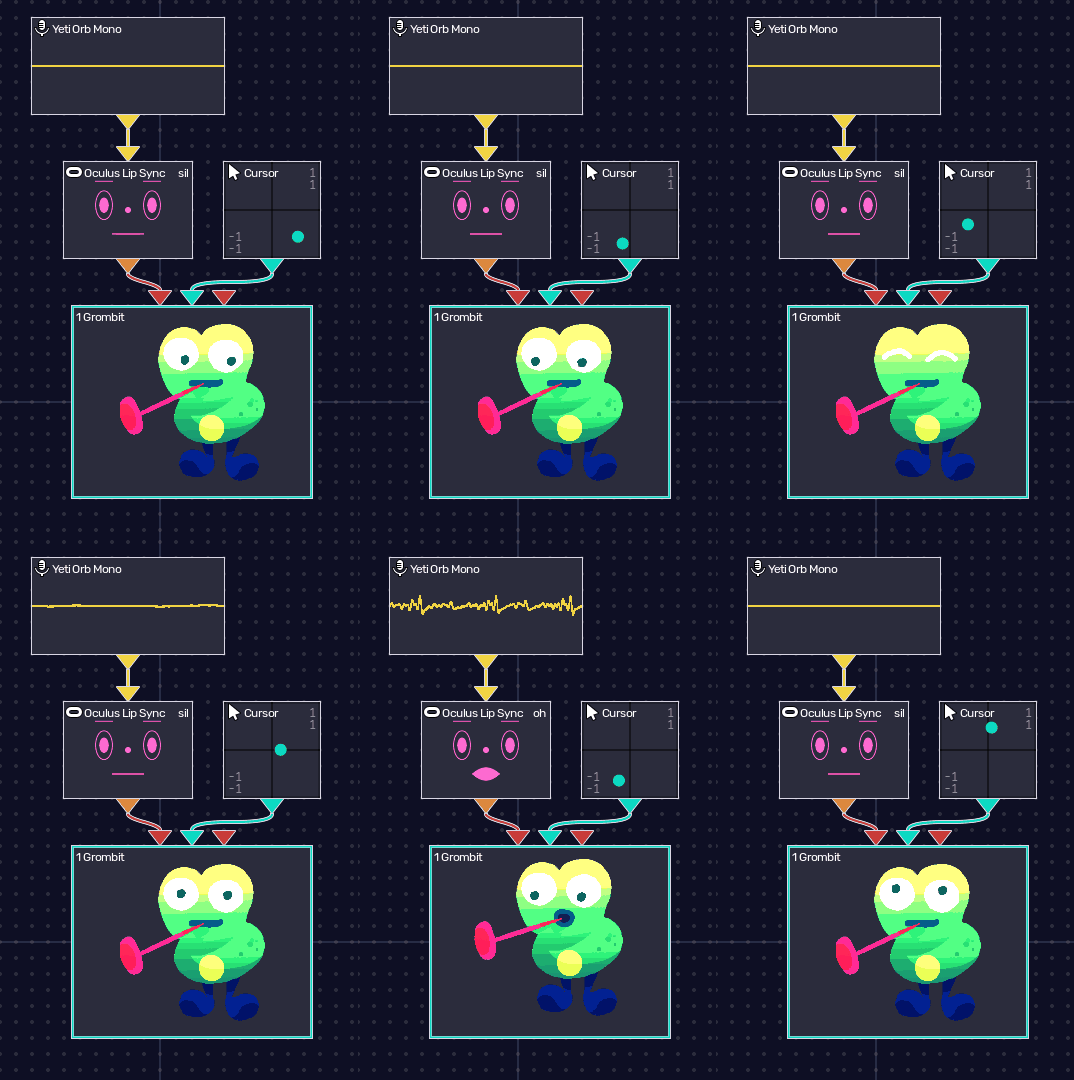
HÖNK avatars can have their avatar scale set in object properties. their node in nodes will let you control the current viseme (string), the look point (point ranging from -1 to 1), and the current emote (string).
a viseme string value is outputted by a lipsync node that detects the current viseme in a given audio. the default nodes are the Oculus Lip Sync one with Microphone, so you just need to right-click it and select which microphone to use.
the look point is, by default, the Cursor on screen. you can right-click it and configure which display to capture, or change it to something else entirely, as long as it outputs a point between -1 to 1 to use.
the current emote is similar to the current state in mini avatars. the default Signal State Events will have the shortcuts configured in the original avatar, but you can override it with new shortcuts, or customize the input entirely.
PNGTuber Plus avatar (.save)
PNGTuber Plus avatars can have multiple settings in object properties, all similar to the original settings that the program offers for an avtar.
their node in nodes is similar to the one in mini avatars: one current costume (string) and one voice activity (boolean). since PNGTuber Plus does not save costume shortcuts with the avatar, there’s no default node for it, but it’d be the same as setting a current state input in a mini avatar. the voice activity input is identical: true means open mouth, false means closed mouth.