 download the apps!
the docs
download the apps!
the docs
 >
usage
>
using veadotube
>
the dynamic avatar editor
>
usage
>
using veadotube
>
the dynamic avatar editor
the dynamic avatar editor 
this is the big one! dynamic avatars are the playground for putting a bunch of images together and connecting them to whatever you want.
due to the freedom it gives you, the dynamic editor can look a bit intimidating at first. we’ll go through each part of the editor, and hopefully this will help clear things up a little bit.
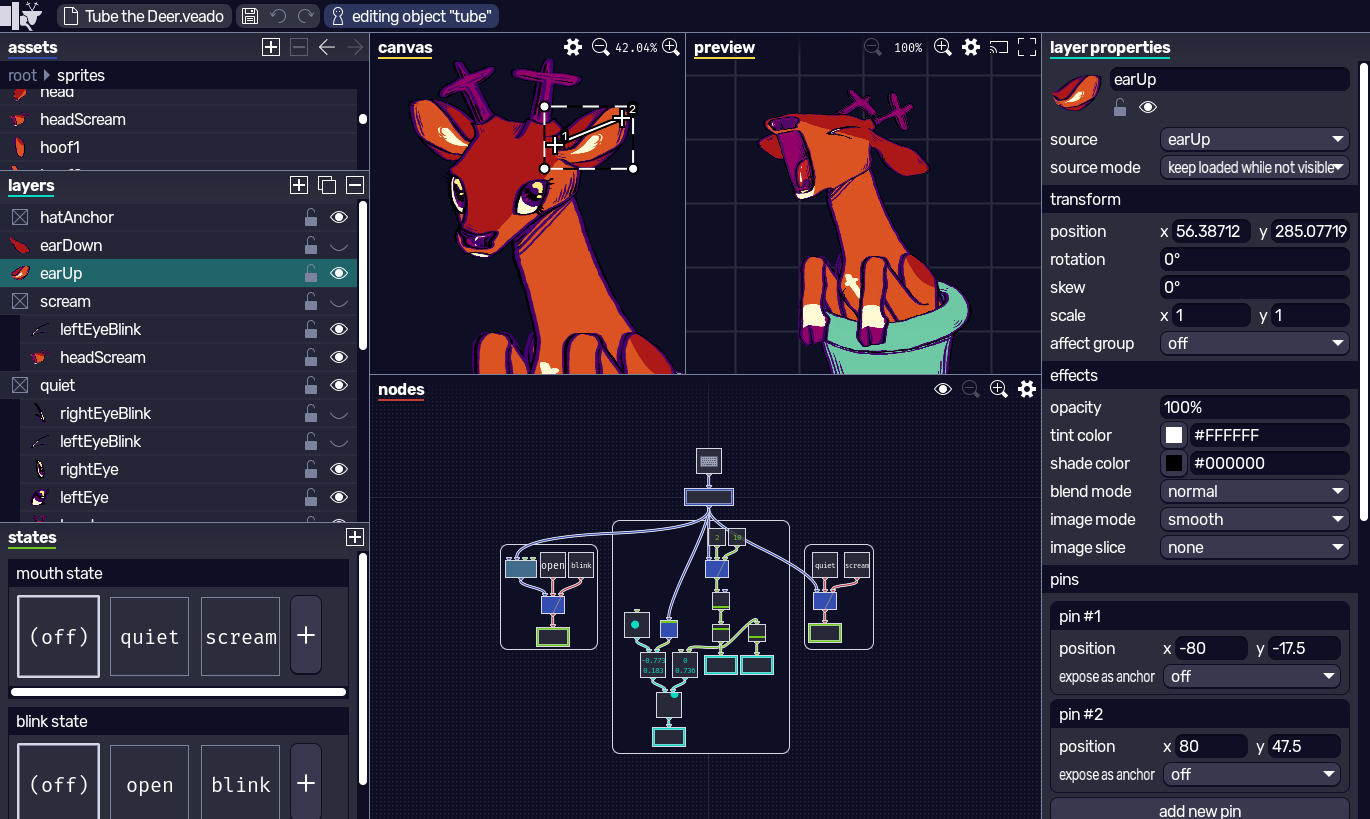
panel overview
- assets: list of objects and imported images. you can import almost any image file format. use this menu to select an object to make it the currently active one.
- layers: list of layers in the currently active object. each layer is associated with a source (an asset from assets) or set to empty, and they can be moved inside one another.
- layer properties: lets you edit the selected layers. gives you options for positioning, layer blending, and adding dynamics to them.
- canvas: visual editor for layers for the currently active object. lets you configure said object, setting for example the bounding box size.
- preview: shows the currently active object with dynamics enabled, responding to the node system in nodes as well. lets you stream it to external programs.
- states: manage state machines for the currently active object, where you can create states that override layer properties.
- nodes: manage nodes for the currently active object. layer sources are exposed here, as well as dynamics and state machines, so that you can control their inputs through the node system.
a first look
upon opening a new blank dynamic avatar, you should find everything empty but the assets panel. it contains an empty object called “new object”, which happens to be the currently active object if you look at the menu bar! if it’s not, you can double-click the object to start editing it.
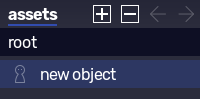
one dynamic avatar file can contain multiple objects, each object can be an avatar or an extension that you can use inside another avatar (you can import objects inside objects, yes). to keep things simple for now, you can just rename this new object to whatever you want, and leave it there.
the typical workflow from here is:
- you import the images and organize them into layers
- you rig these layers through states, dynamics, and nodes
- you use it as is, or expose your avatar to a scene
importing images into layers
veadotube supports almost any image file format, and automatically breaks layered files (like .psd) into multiple layers. so there’s a good chance that you don’t need to do much with your images to import them onto the program.
the only thing to keep an eye out for is the image resolution. similar to how veadotube mini deals with images, large images loaded in memory can take up a lot of resources, so pay attention to your canvas size! again, consider whether this avatar will ever show up close or if it’ll just take a small portion of a 1080p video canvas.
it also depends on the type of avatar. if it’s more akin to a pngtuber (one image at a time showing a full character torso), multiple images will be pretty heavy, and we keep the recommendation of keeping it at most 2048x2048 just like in veadotube mini.
on the other hand, an avatar that has lots of tiny parts instead won’t have an issue with this (and veadotube crops transparent areas of a large texture upon loading it, so a large empty image with a small part in it counts as “tiny parts” here), but it might still look too crispy if the image is too large for the window size.
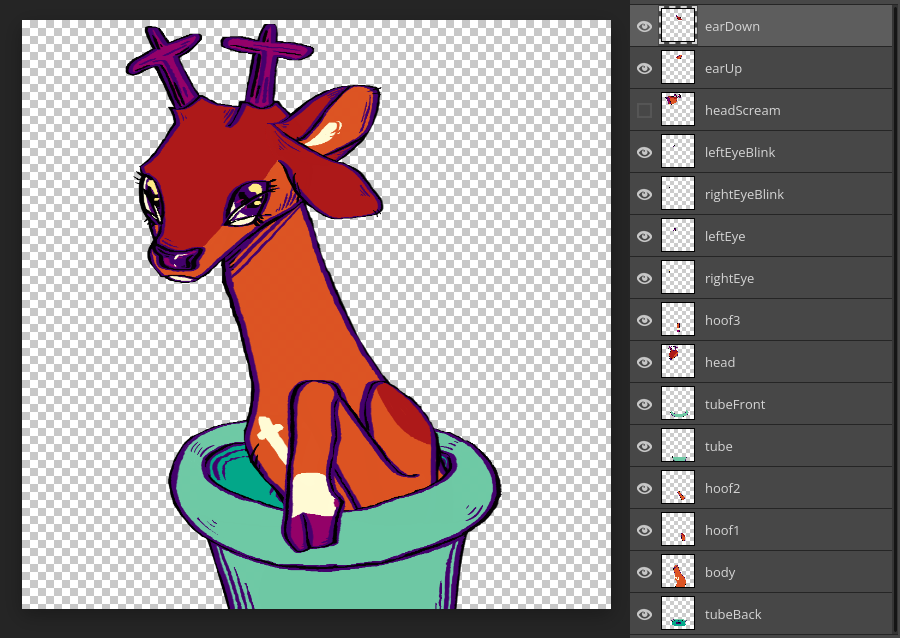
whenever your images are ready: the assets panel lets you import your image files. layered files are automatically turned into folders with images inside. you can also replace existing imported images by right-clicking on them, which also works with folders, so you can reimport your .psd later on without too much pain in case you need to make any last minute changes.
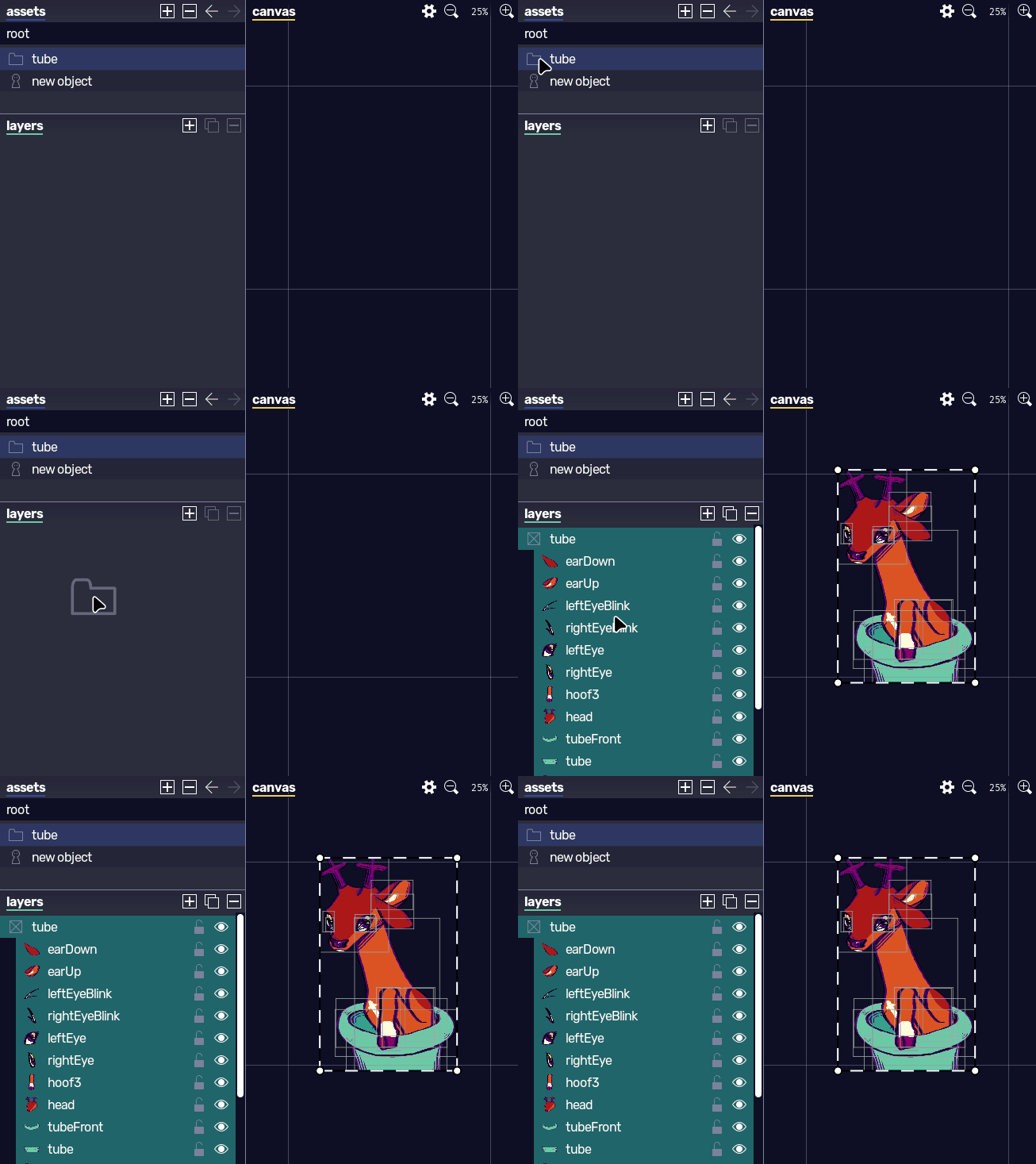
to add these imported images to the active object, you can either drag each image, or multiple ones, or an entire folder by itself. if the folder came from a layered file, it should automatically lay everything down in the original ordering/positioning. you can drag imported images onto either layers or canvas; the former will position everything at the exact object center, while the latter will position right below the cursor.
doing this will create one layer for each image, where each layer will have its source set to the respective image. another way to create layers is by just pressing  in layers, which will create an empty layer (a layer without any source set). you can still change the source of this layer in layer properties.
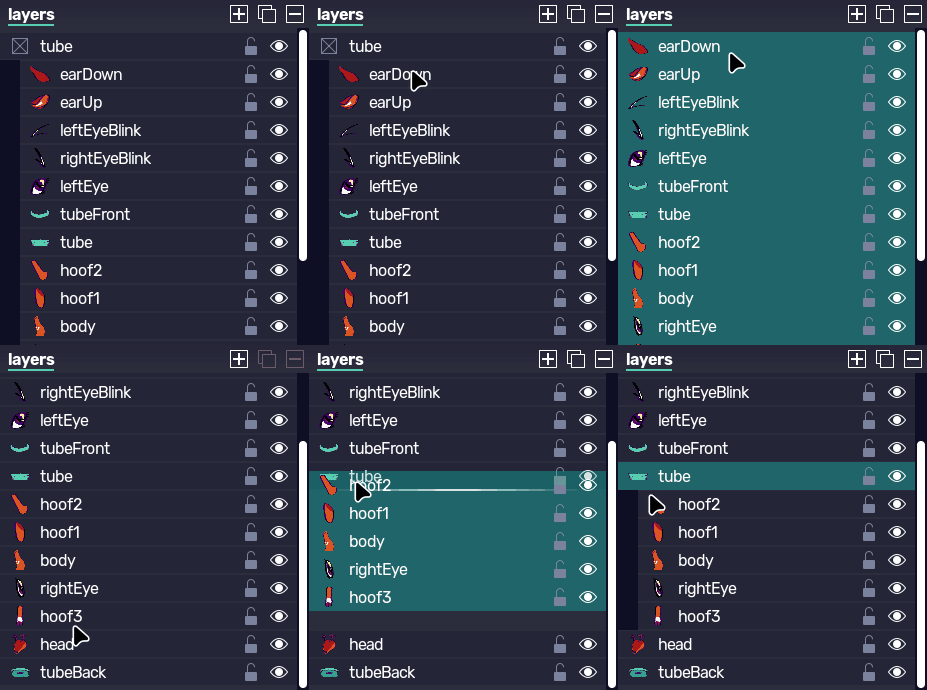
similar to other art programs, you can drag layers in layers around to reorder their visibility (topmost layer is rendered in front of the others), as well as change whether they’re visible or not. you can also parent one layer onto another by dragging it just slightly below the parent layer; this lets you do blending mode tricks, and also masking.
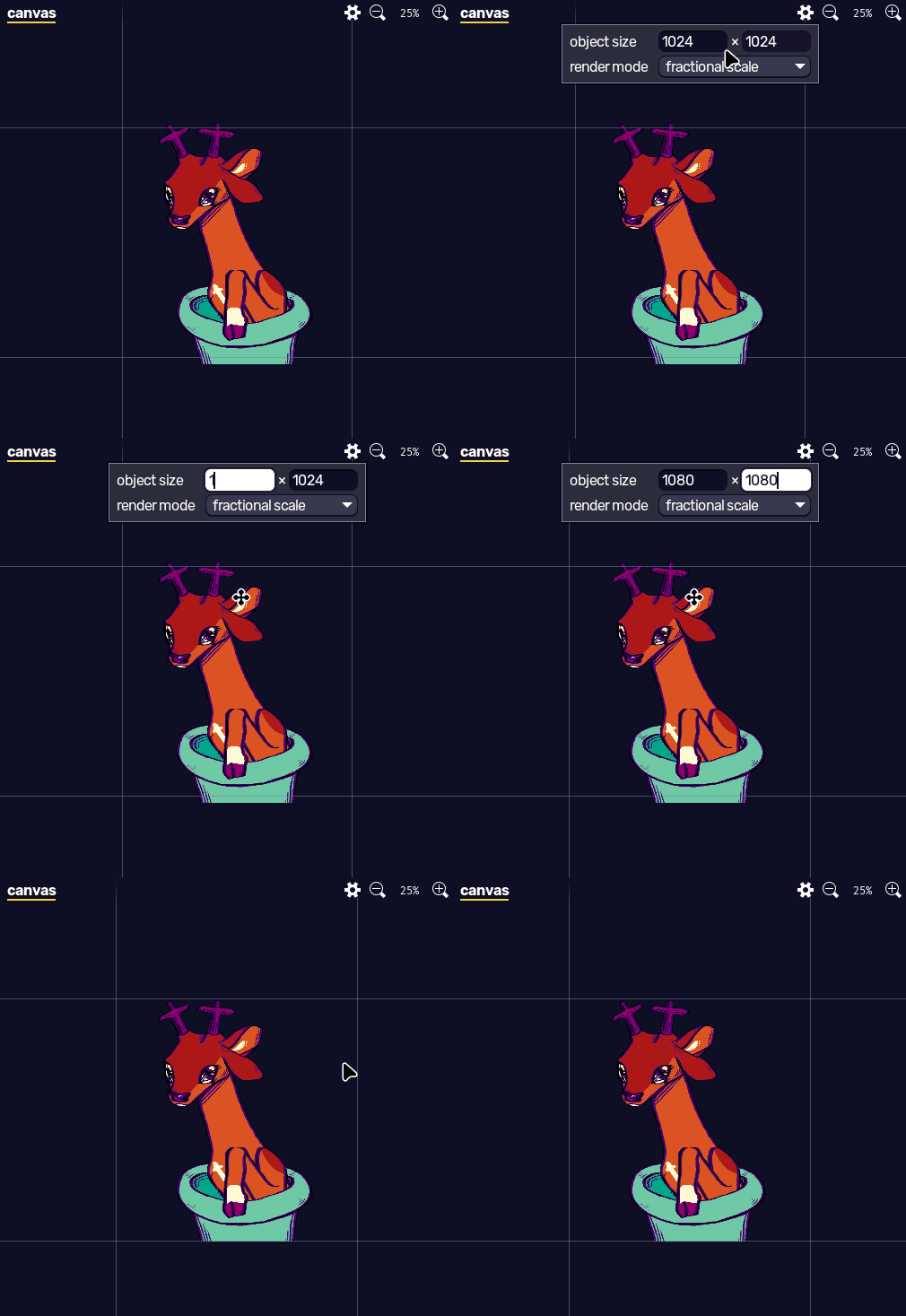
you can use the canvas for moving your layers around. you’ll also probably need to adjust the object’s bounding box to match your art after this, which you can do in  .
.
for more precision and most other settings, you’ll need to go to layer properties. there, you can configure things such as the layer source, precise positioning, blending, masks, so on.
in veadotube, positive X is right, and positive Y is up.
masking works by selecting a layer that’s a parent to other layers, and changing its mask mode to either “mask” or “clip”. in both modes, child layers are all contained inside the silhouette of the parent layer; in the former, the parent layer is hidden, and in the latter it remains visible behind the other layers.
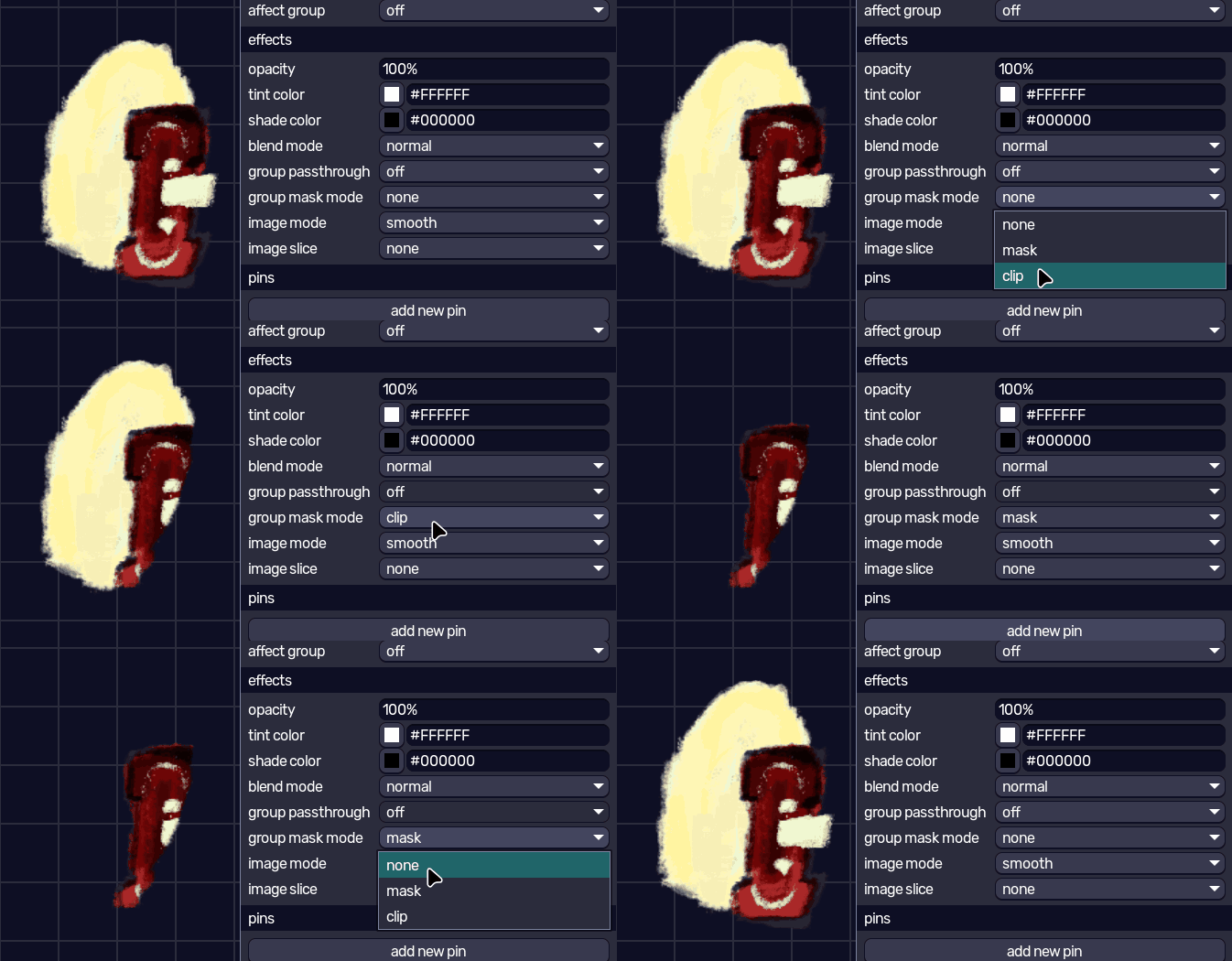
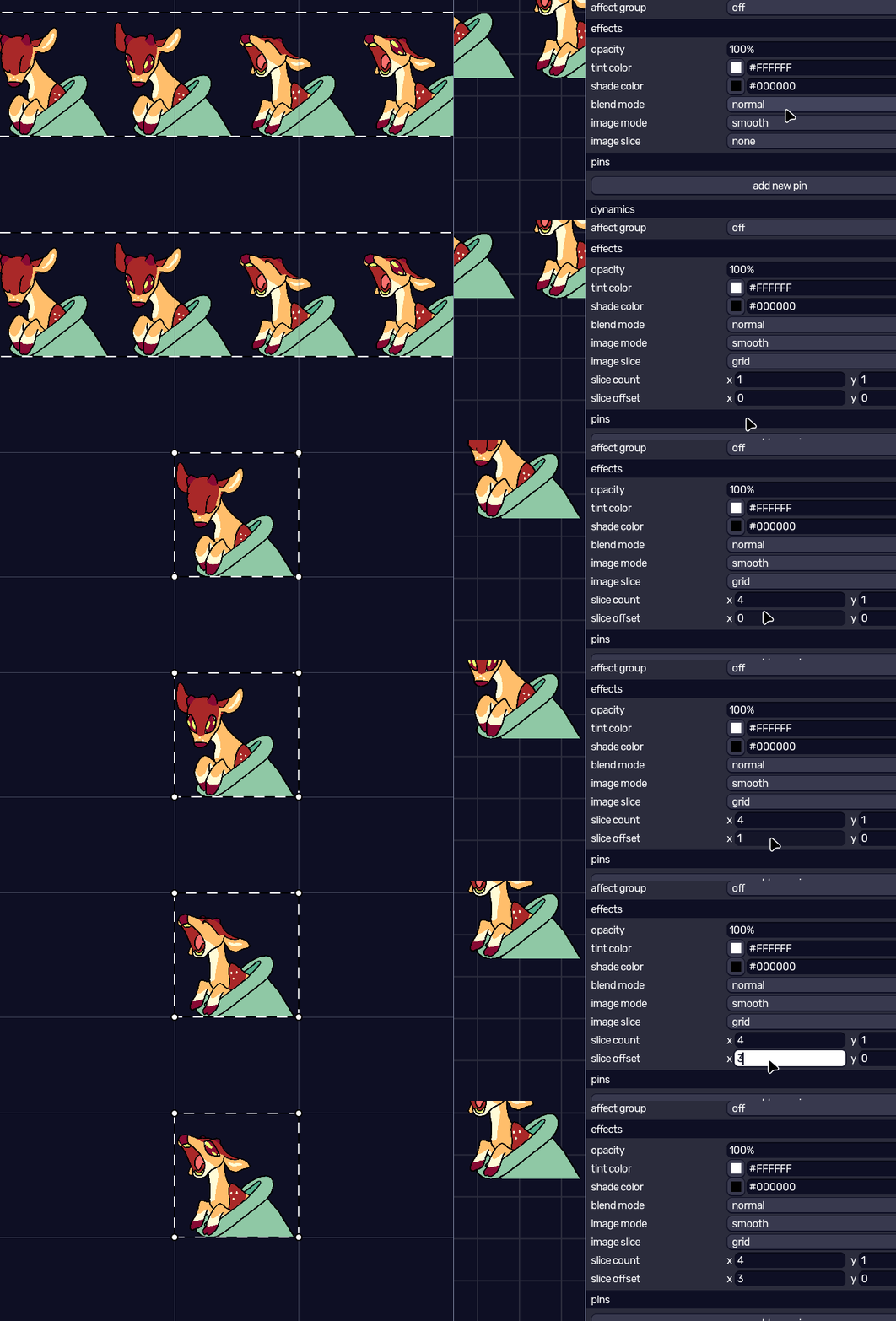
image layers also let you slice the source images, either by selecting the offset+size of the crop, or by cutting it into a grid and selecting which piece of the grid will appear. this can be useful in case you have a spreadsheet rather than separate images for each thing, or in case you wanna segment your sprite to simulate deformation.
making it do anything
at this point, your avatar is static. time to make it move!
there are three main ways to make your avatar move: through layer inputs in the nodes panel, through states in the states panel, or through dynamics down the layer properties panel.
one thing they all have in common is that they all need at least some node wiring to work. for details on how nodes work, refer to the node system guide.
when looking at the nodes panel at first, you’ll find the object input and object output nodes. these will be useful for exposing your avatar to a scene later, but for now you can ignore them.
layer inputs
every time you added a new layer, a new node spawned under nodes. each node represents the layer itself, and lets you control how the source is used.
for example, an image layer will give you a node with the image time input, which receives a number representing the time in seconds. similar to how the image object works in a scene file, it’s an optional input, and in case nothing is connected to it, it’ll loop the image and emit the current time in seconds as the image time output, along with the image duration output to tell you how long the image takes.
in case an image layer is set to be sliced, two extra inputs will show up in its node, for controlling the positioning of the slice. this is useful for spritesheet animation.
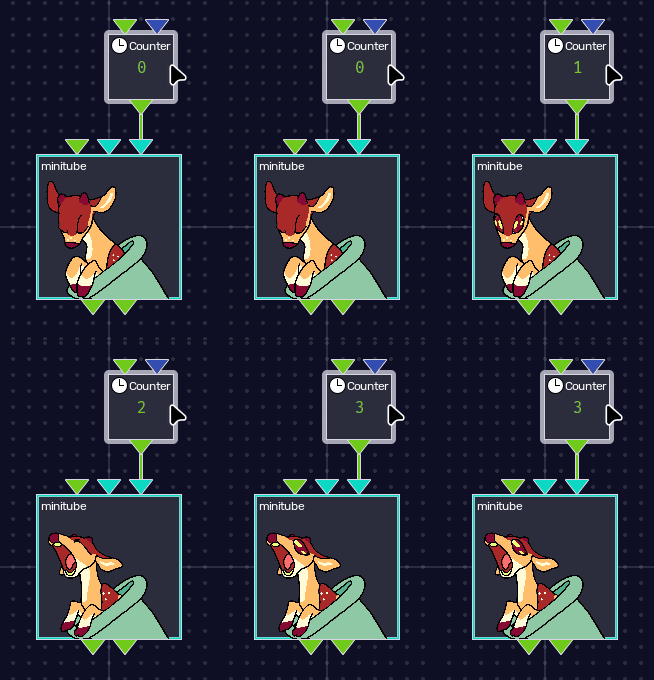
in case the layer source is set to an object, the object’s inputs and outputs show up here as well. we’ll talk about object inputs and outputs later in this guide.
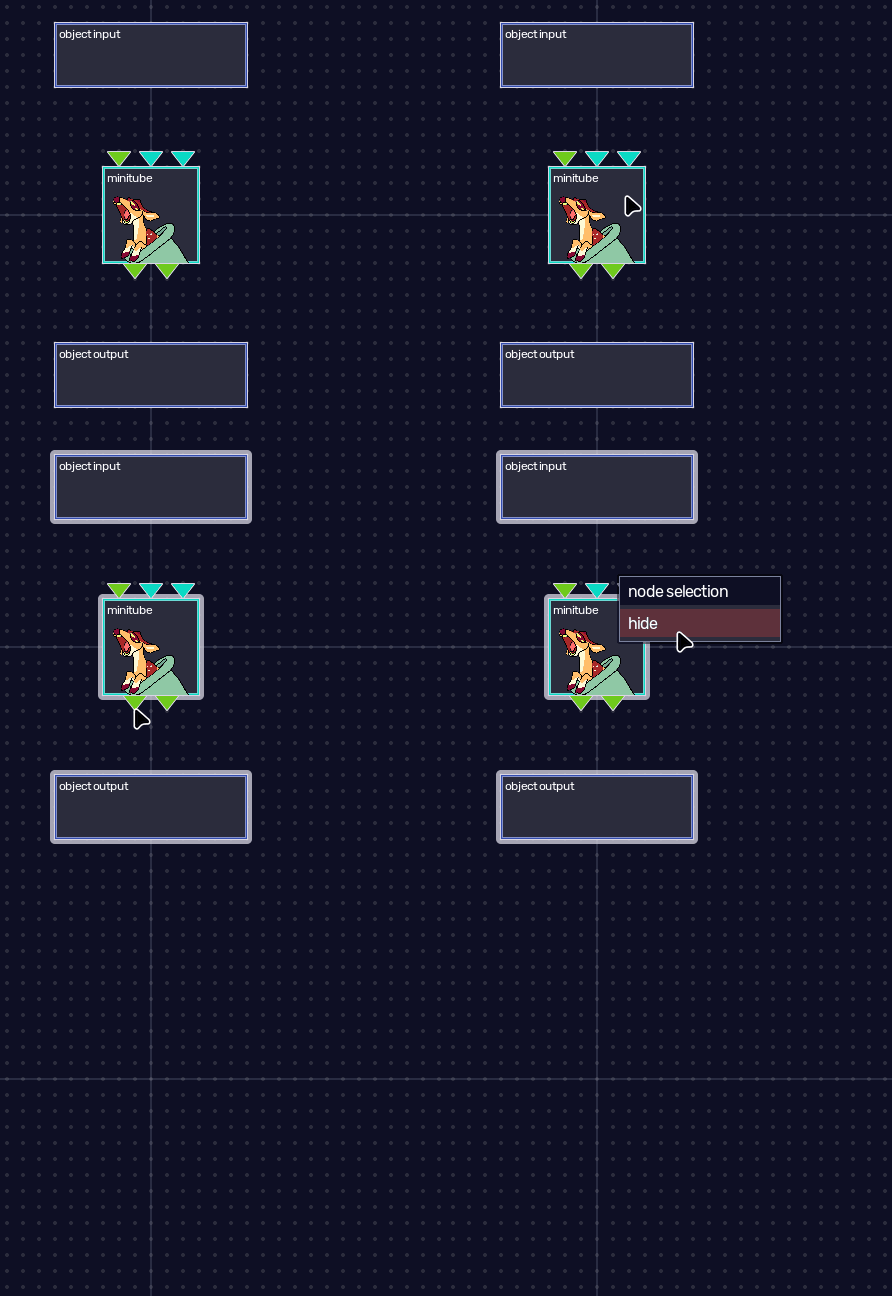
if you don’t need a layer node, you can simply right-click it and set it to be hidden. this way, it won’t clutter your node graph.
states
the states panel is similar to the scene editor one. you can use it to override most of the properties in layer properties, letting you, for example, control a layer’s visibility state, and then, through the nodes panel, you can set the current state to be shown.
it’s common to use it for toggling on/off sets of images, like avatar emotions/poses, lipsync mouths, eye blinking, and so on. if you’re making a simpler pngtuber, this will be the main way to bring life to your avatar.
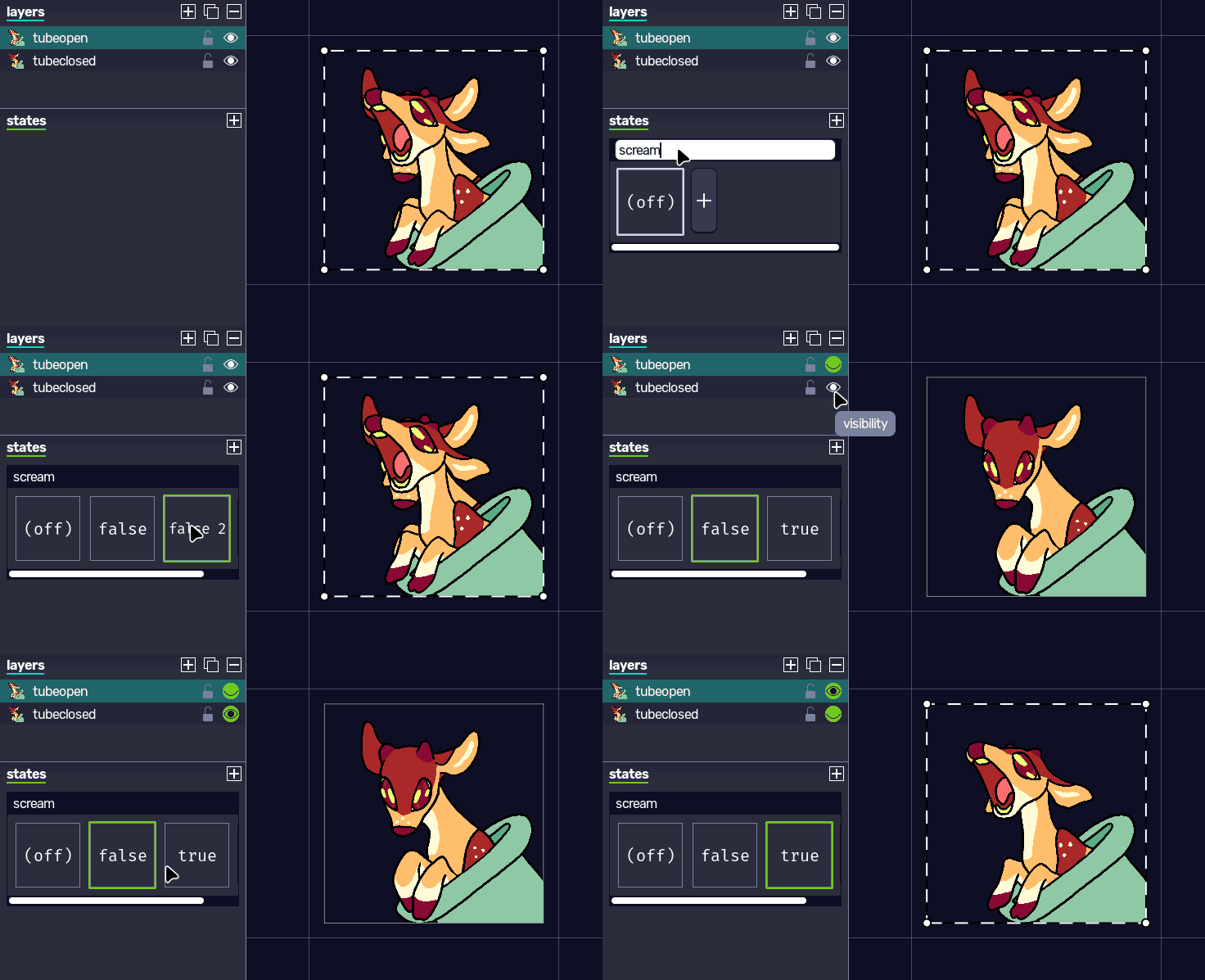
for details on how states work, refer to the states and state groups guide.
dynamics
dynamics are added to a layer through the layer properties panel, and can be used to control a layer with nodes or make a layer react to its own or another layer’s movement.
dynamics that create nodes are the following:
- move for the layer position;
- rotate for the layer rotation;
- skew for the layer skew;
- scale for the layer scale;
- fade for the layer opacity;
- tint for the layer tint color;
- shade for the layer shade color.
move, for example, is useful to make a body part move according to the cursor on screen, but it could also be a generated value like random noise or waving, or even connect it to the output of camera tracking to make it follow a face, or a combination of everything.
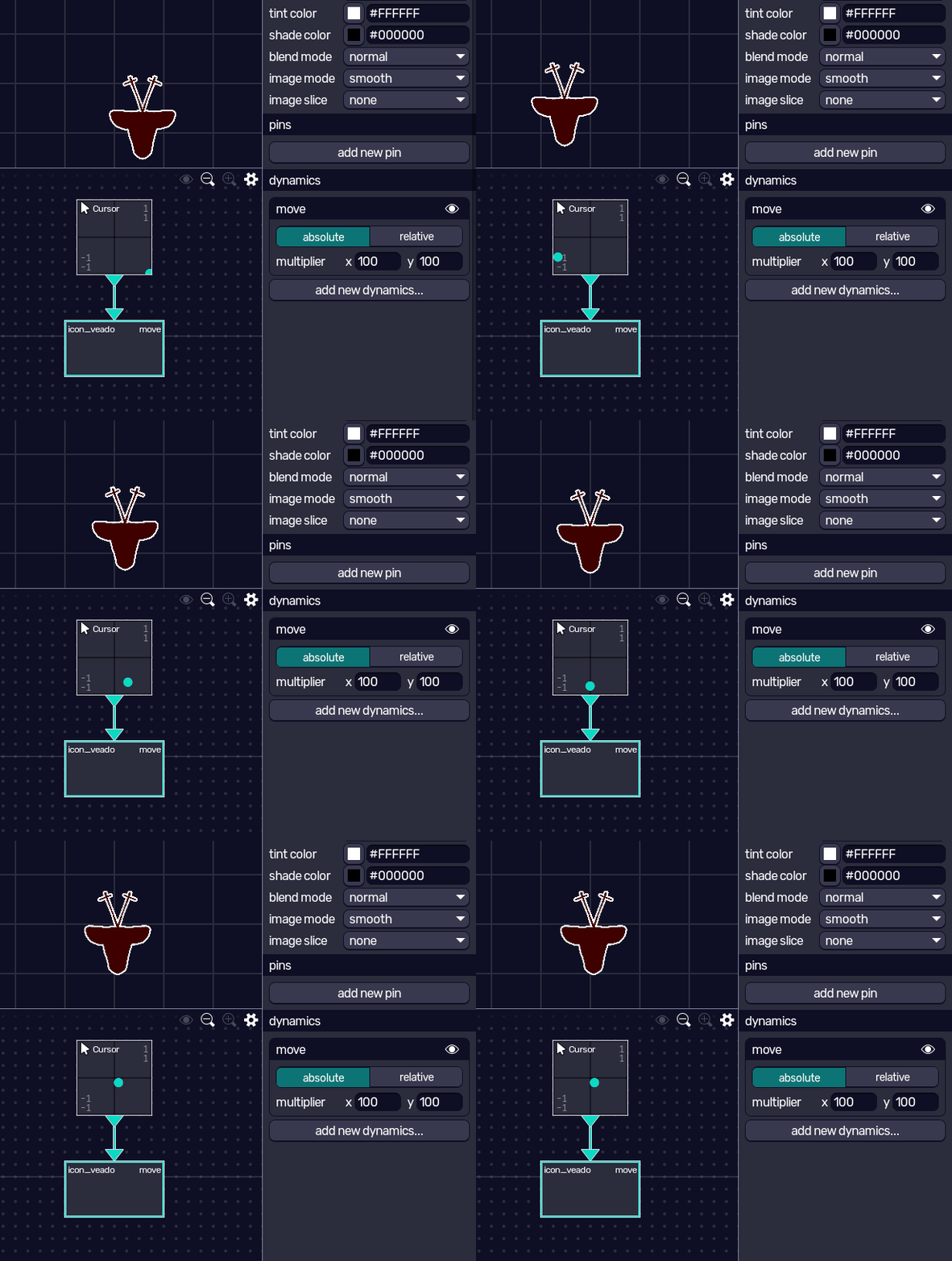
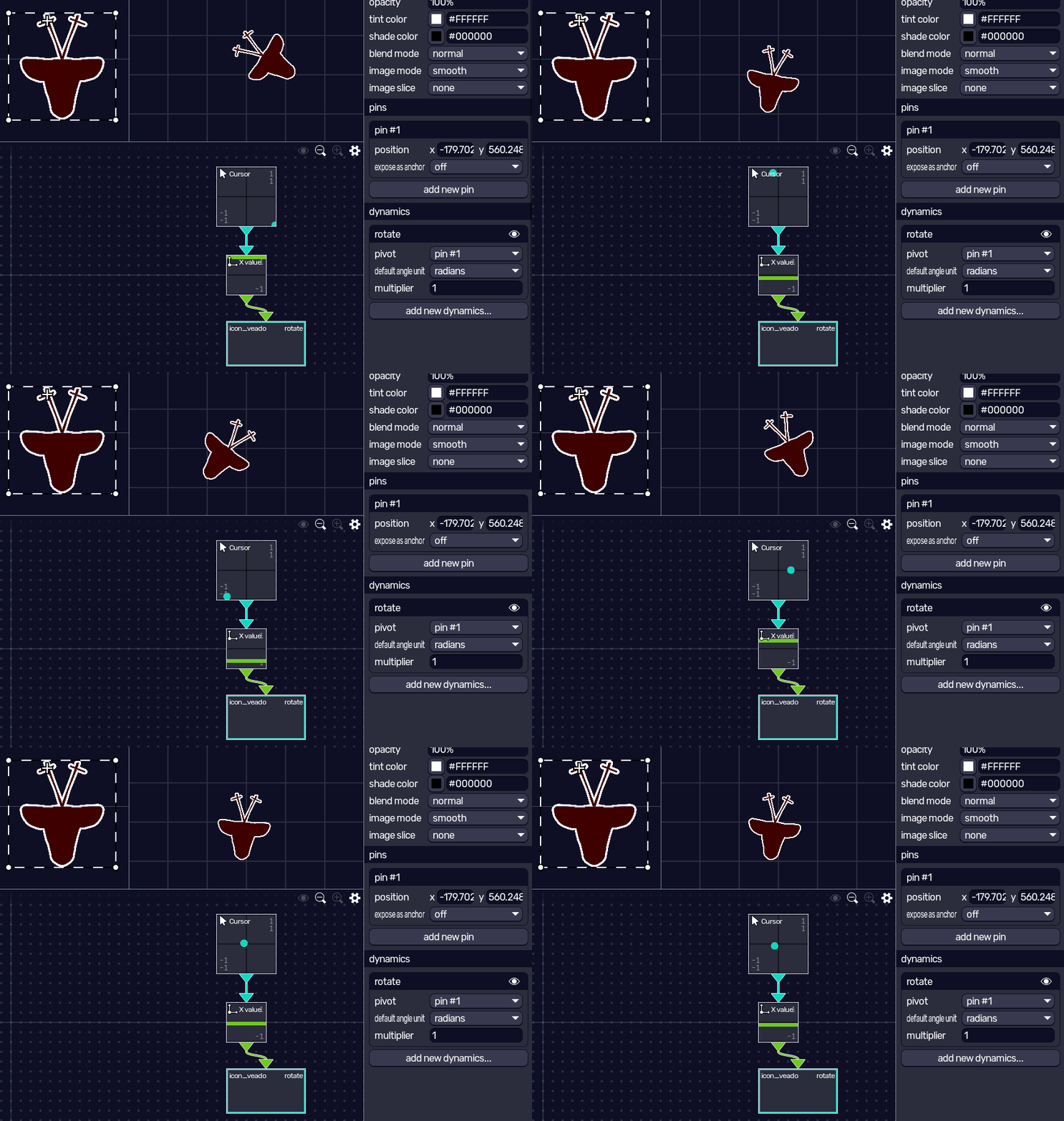
some of these have the option to set a pivot using pins. these are points that you can mark on a layer. rotate, for example, uses a given pin as the rotation pivot. if you don’t select a pin, by default, it’ll rotate around the layer center. some of these also have the option to be relative rather than absolute, which makes the transformation relative to the current layer transform.
there are other dynamics that don’t create nodes, but are just as useful. to make a layer follow another layer’s transform, you can use the attach dynamic. it also lets you smooth the attachment so that it follows the other layer more slowly.
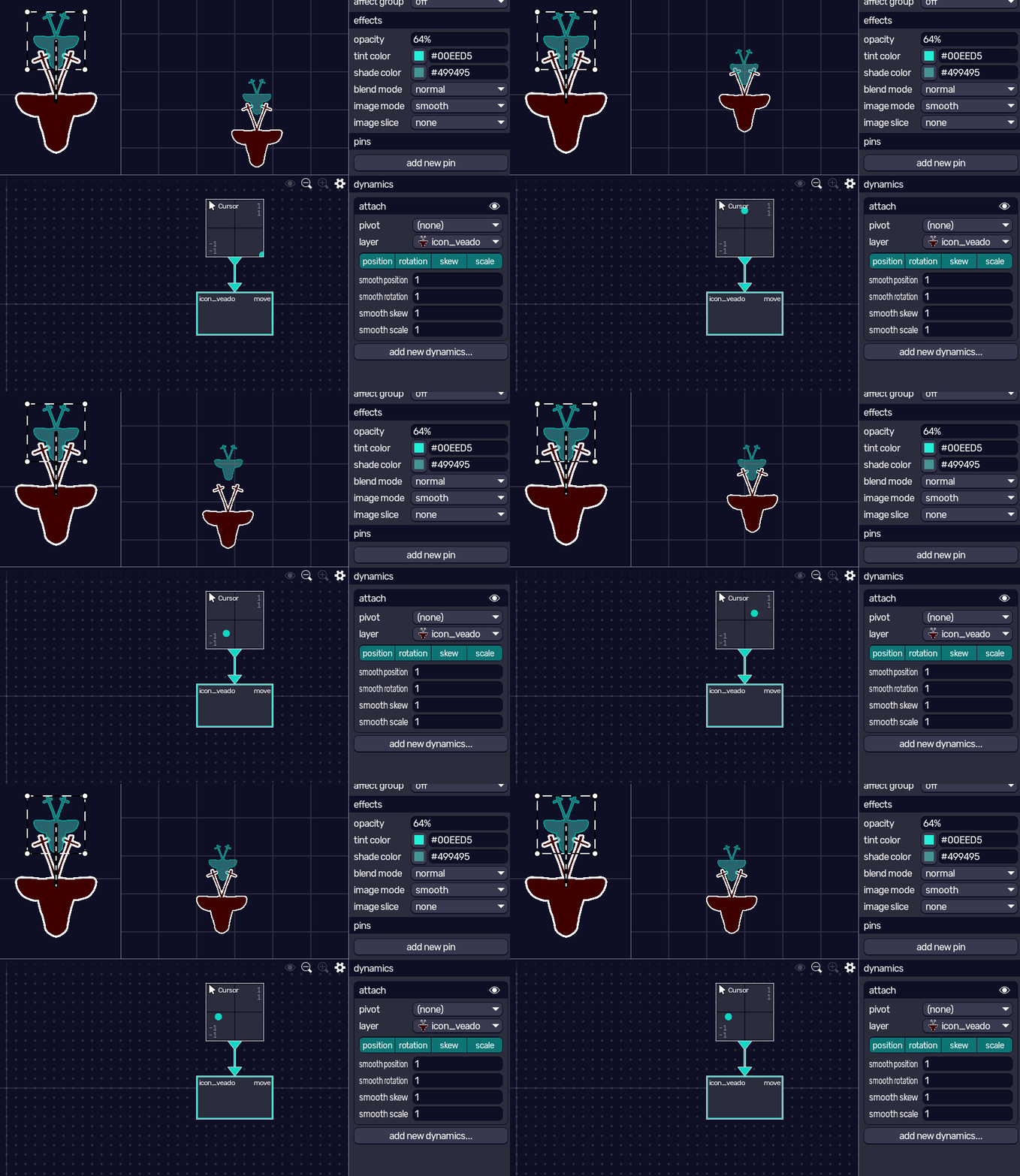
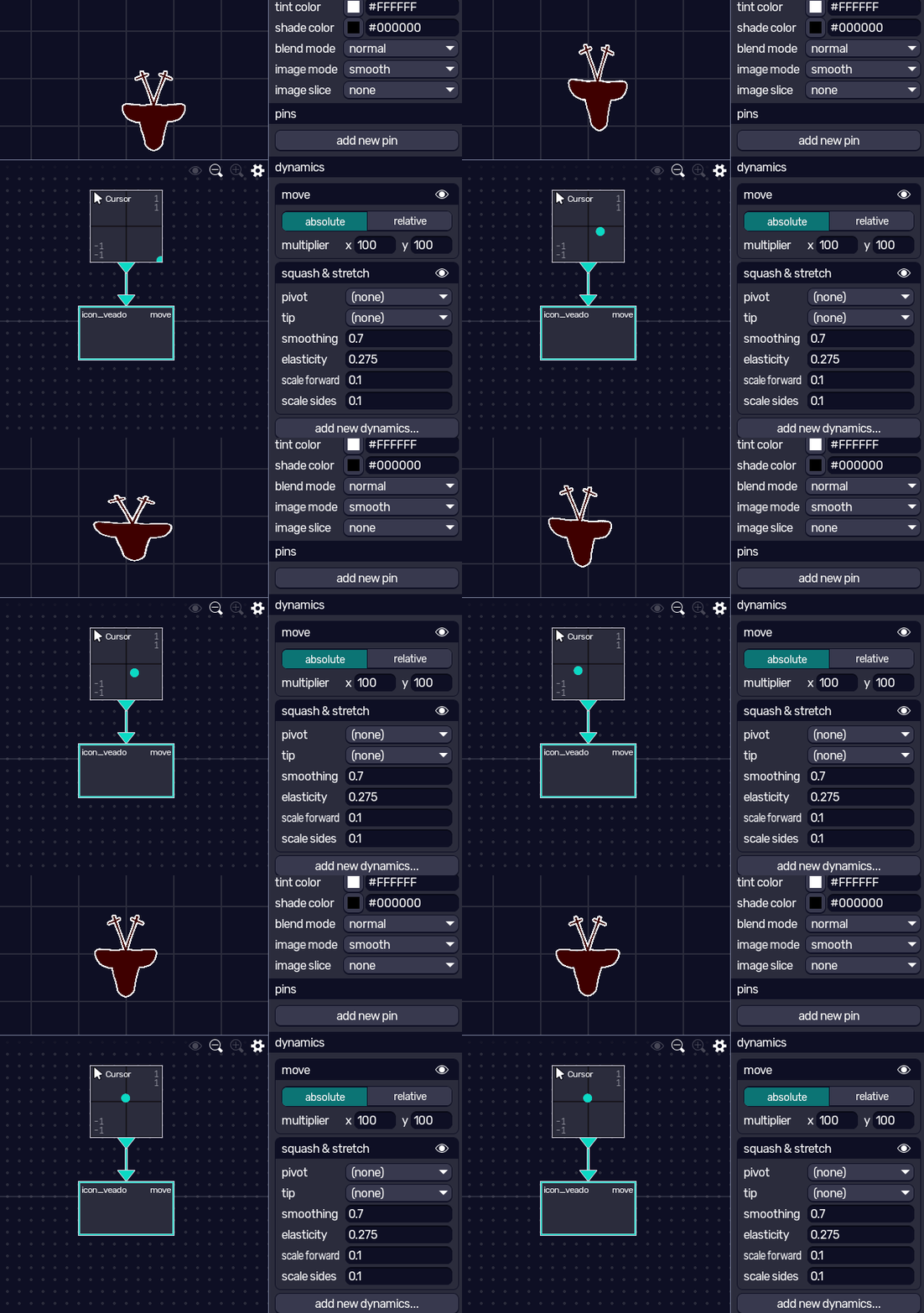
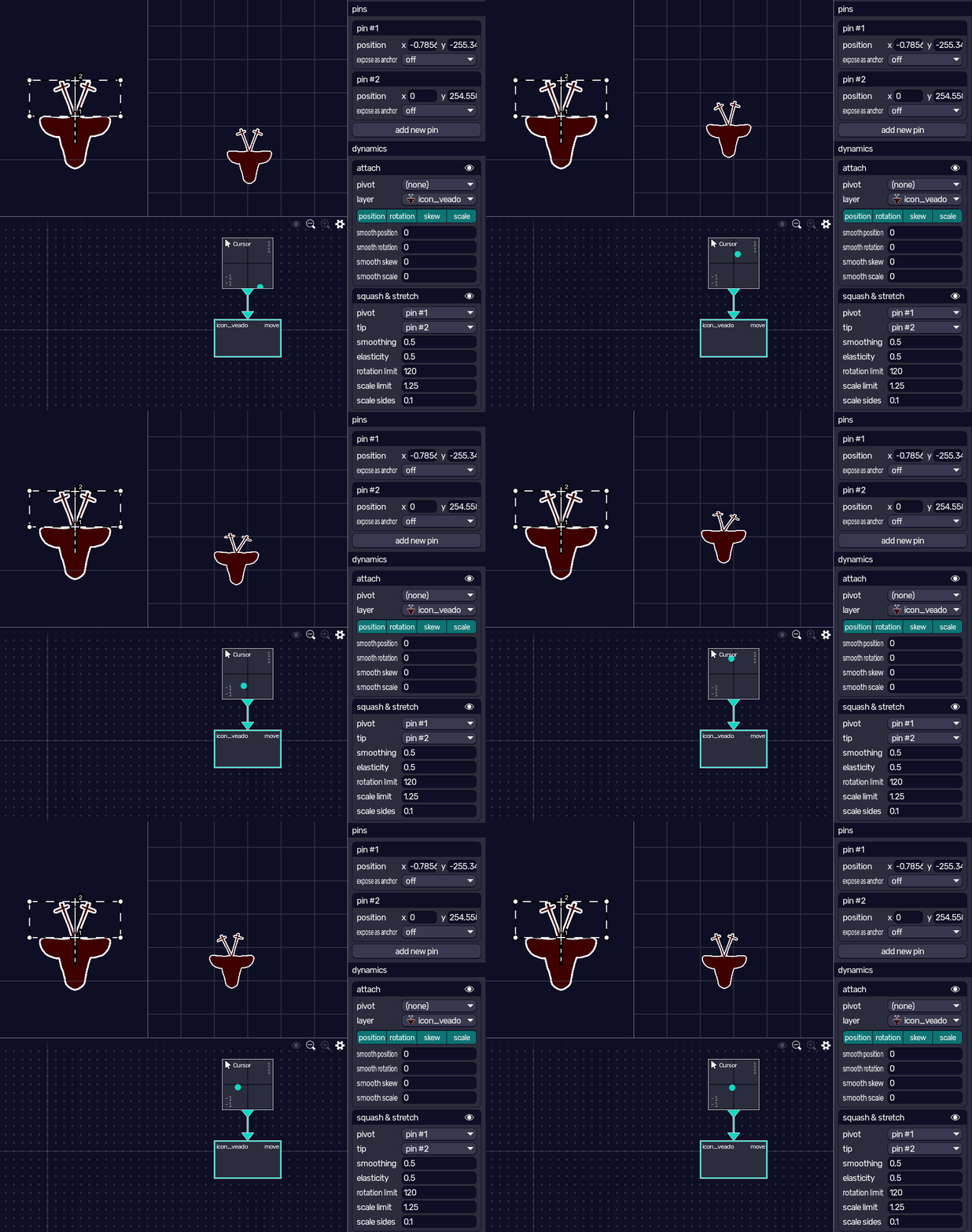
another important one is squash & stretch, which scales the layer according to its own movement. if its pivot and tip pins are set to two different pins, it’ll also react to rotation, making it a good choice for avatar attachments like ears. you can also configure the effect elasticity and whatnot to make sure it looks just like you want it.
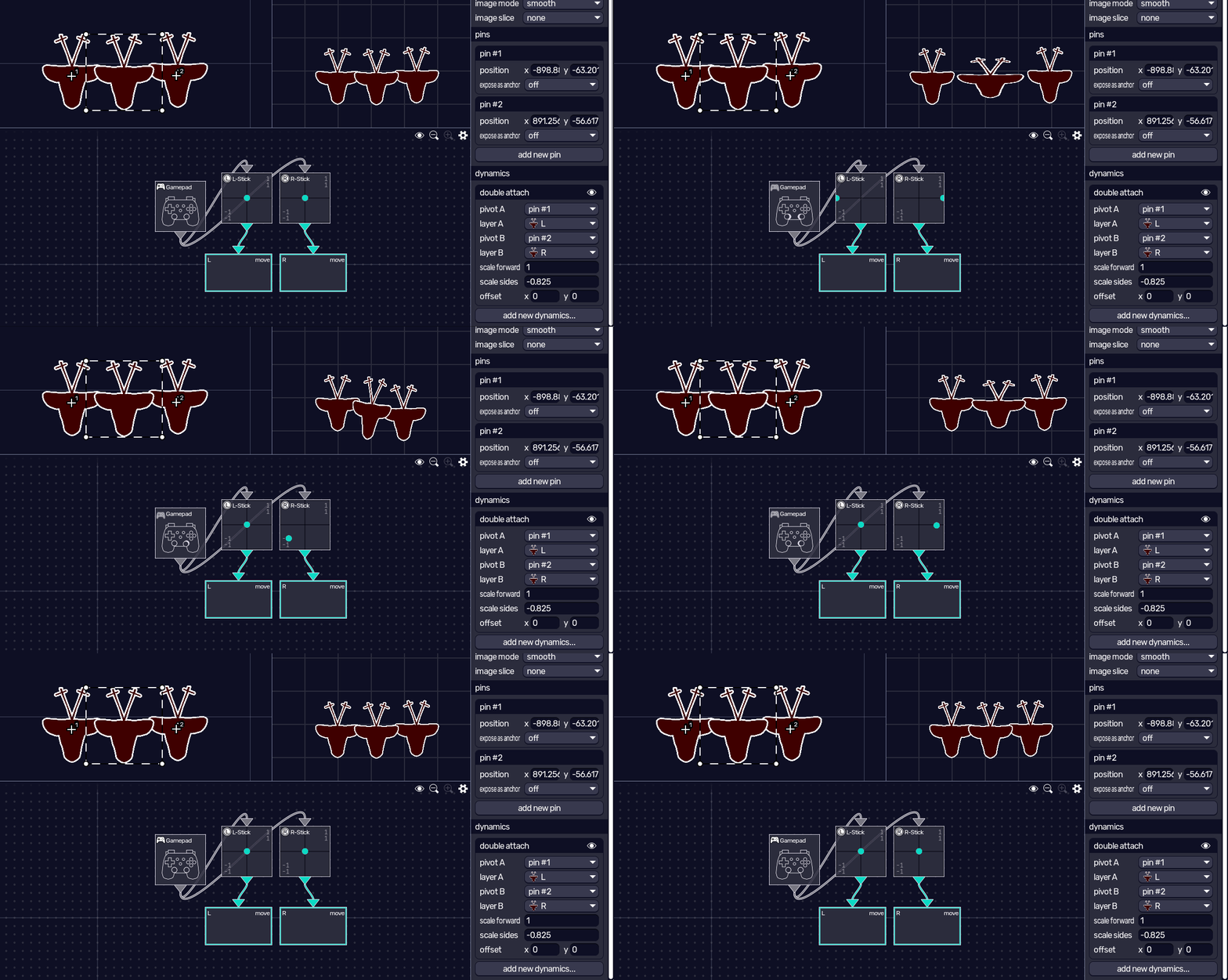
double attach lets you connect one layer to two points, for example if you have a body and a hand moving separately and you wanna connect an arm between the two. look at makes one layer rotate towards another, as if it’s looking at the other layer, as the name implies.
other dynamics include number and point; these don’t do anything to affect the layer itself, and only serve to provide constant values to the node system. note that states can be used to override properties set in dynamics as well!
using your resulting avatar
now you have an avatar! you used the node system to control states or dynamics or layer inputs, and now your avatar moves and it’s ready to be shown to the world.
you can already stream it as is, either by hiding the UI with  in preview and capturing the window, or by streaming it directly to your streaming program with
  . refer to the OBS guide on how to make use of all that.
alternatively, you might wanna use the scene editor to import the avatar you just made, since it lets you control the video size and frame rate  more easily, and even stream multiple avatars from different programs at once.
when you first opened the avatar editor, you might have noticed the object input and object output nodes in the nodes panel. these expose input and output slots to the node that shows up when you later import this avatar in the scene editor! by right-clicking on those nodes, you can configure each slot, its name, and its usages.
by wiring your node graph to make the inputs you configured go through object input, you make it easier to rewire your avatar to use any other kinds of input later on, and the nodes connected to it are used as the default nodes that get added when you first add your avatar to a scene.
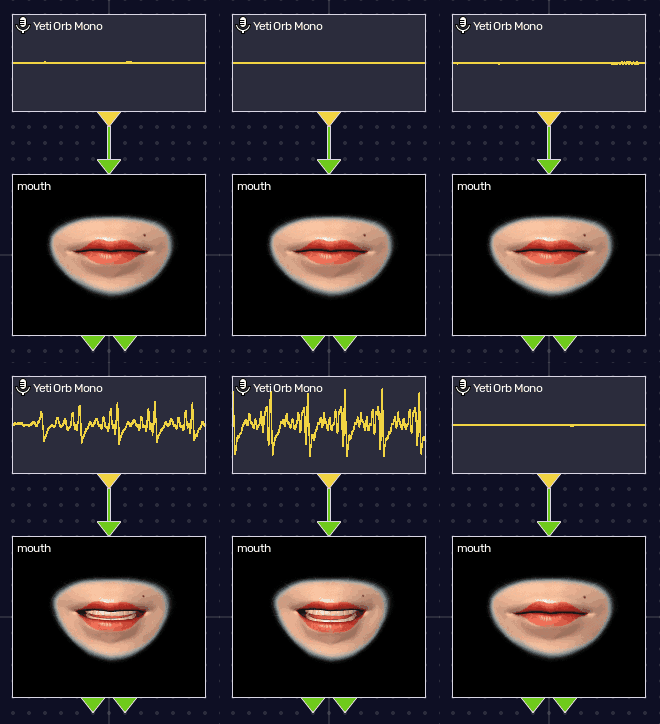
for example, an avatar that was rigged to use a Microphone node to make the character speak can expose the voice activity as a boolean input. this way, whoever (including you!) imports this avatar in the scene editor can change which microphone device to use, adjust the sensibility, or just throw these nodes away and come up an entirely new speaking pipeline.
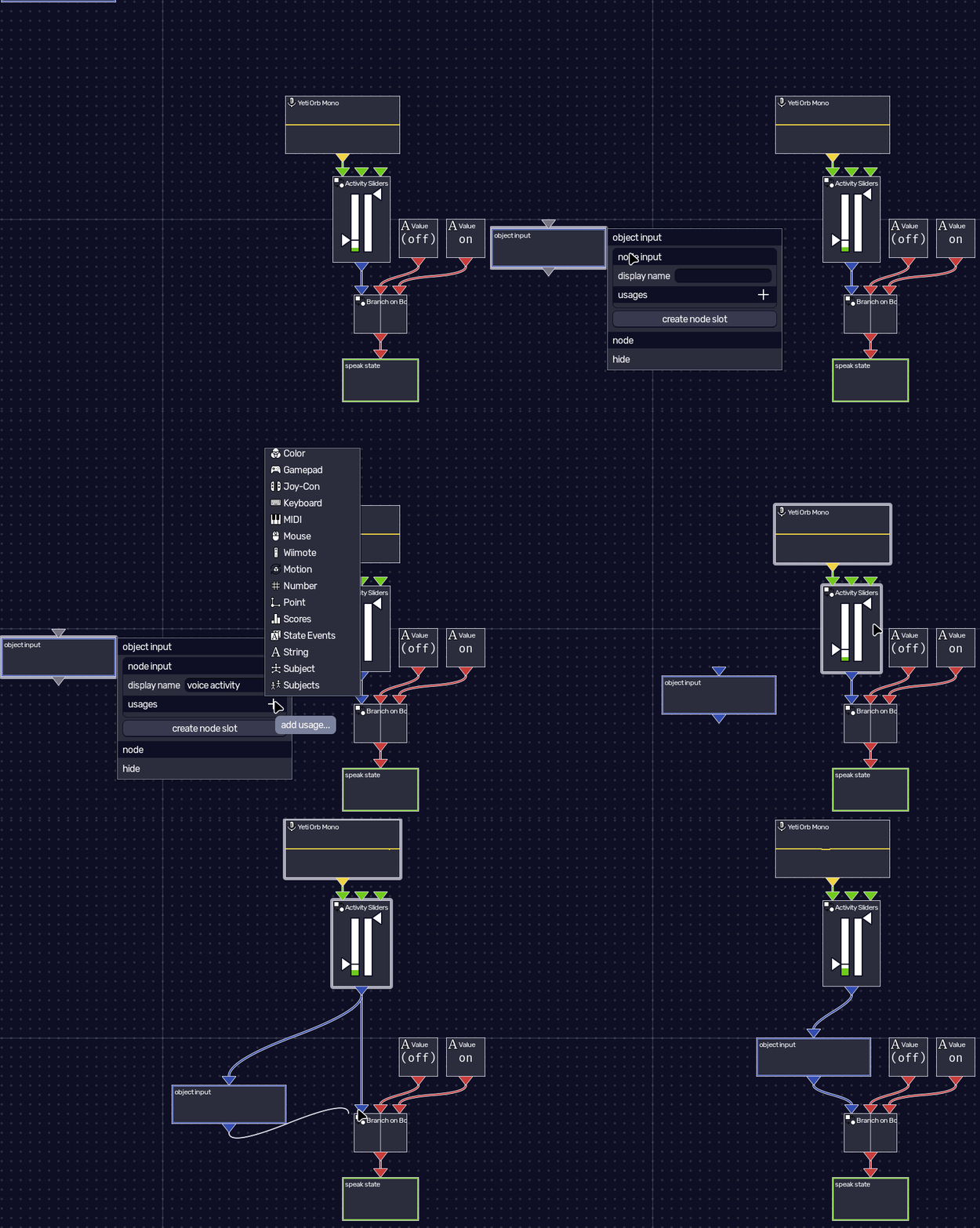
object output is the same idea, but for outputs. anything you put in there gets outputted to the scene node graph.
these are useful not only for the scene editor, but also for other objects in the same dynamic avatar file; when importing an object inside another, the layer node exposes the inputs/outputs set in object input and object output! this can also be used to create helper empty objects that do complex node operations (so you can “create your own nodes” in a way).
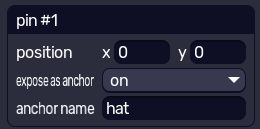
another thing for scenes: remember pins? they’re not only useful for dynamics, they can also be exposed as anchors for the scene editor. this way you can still have accessories and props without having them baked into your avatar.
examples
veadotube comes with pre-made dynamic avatars in the “default avatars!” folder alongside the executable. take a look at how they’re wired, and see how one thing affects the other. as mentioned before, you don’t have to use all features, only the ones that make sense for your project!
if you’re looking into building a specific type of avatar, check out the community! some people are making tutorials for more specific use cases. we plan on having written guides here for those as well.