 download the apps!
the docs
download the apps!
the docs
 >
usage
>
using veadotube
>
the mini avatar editor
>
usage
>
using veadotube
>
the mini avatar editor
the mini avatar editor 
you can create, edit, and preview avatars supported by veadotube mini in veadotube. we call those “mini avatars”, fittingly.
the workflow is very similar to how veadotube mini works, so this guide is relatively short as it assumes you’ve read the veadotube mini guide itself. we’ll go through the differences and additions here.
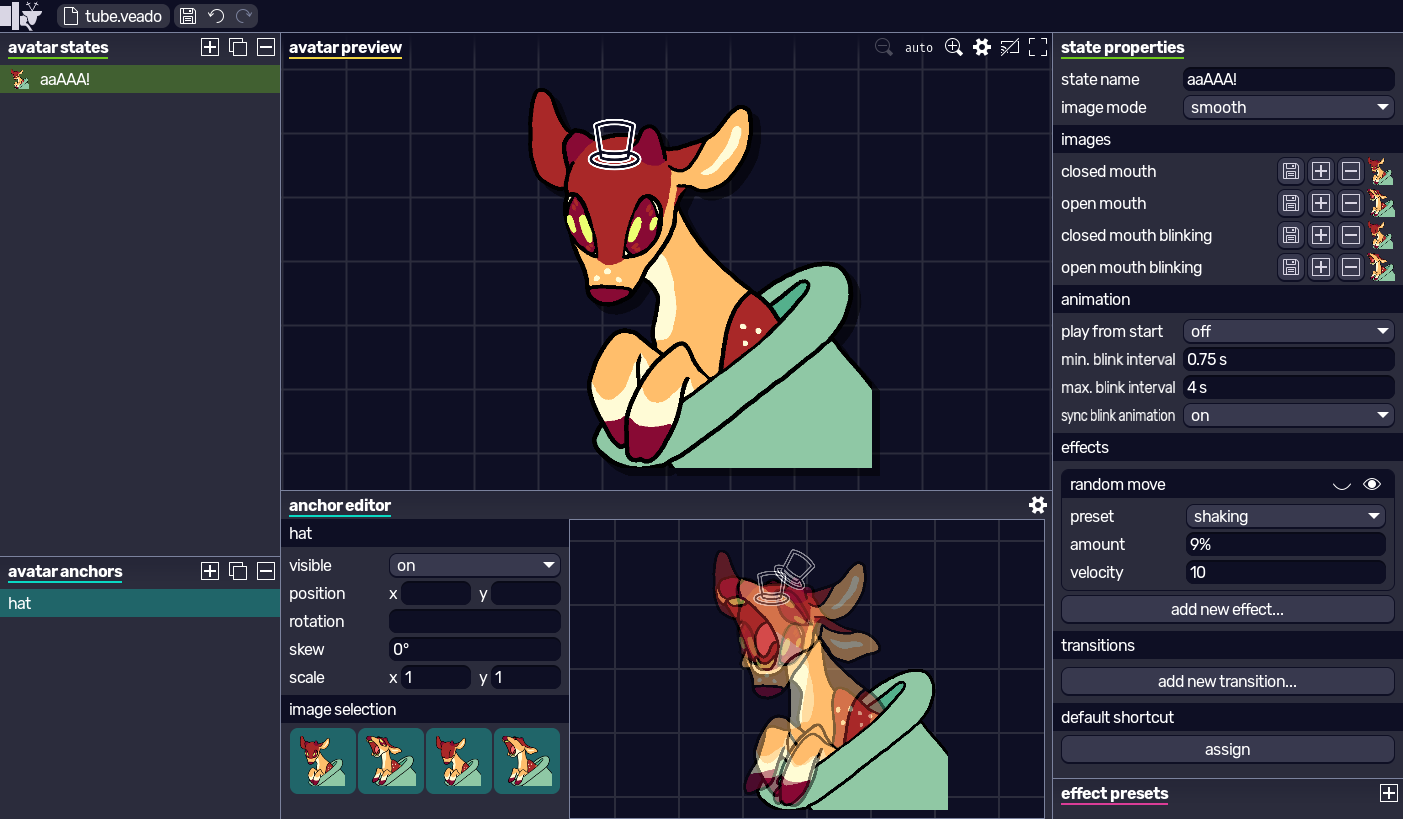
panel overview
- avatar states: list of states. you can select multiple states at once to reorder/duplicate/delete.
- state properties: state editor. with one or multiple states selected, you can switch images and change properties (name, pixelated mode, animations, shortcuts, etc).
- avatar preview: shows the current state.
 lets you set a microphone to preview the avatar, as well as settings for streaming.
 - effect presets: lets you create and edit custom presets for effects/transitions that you can use in states.
- avatar anchors: list of anchors. they can be used to attach other objects onto the avatar in the scene editor.
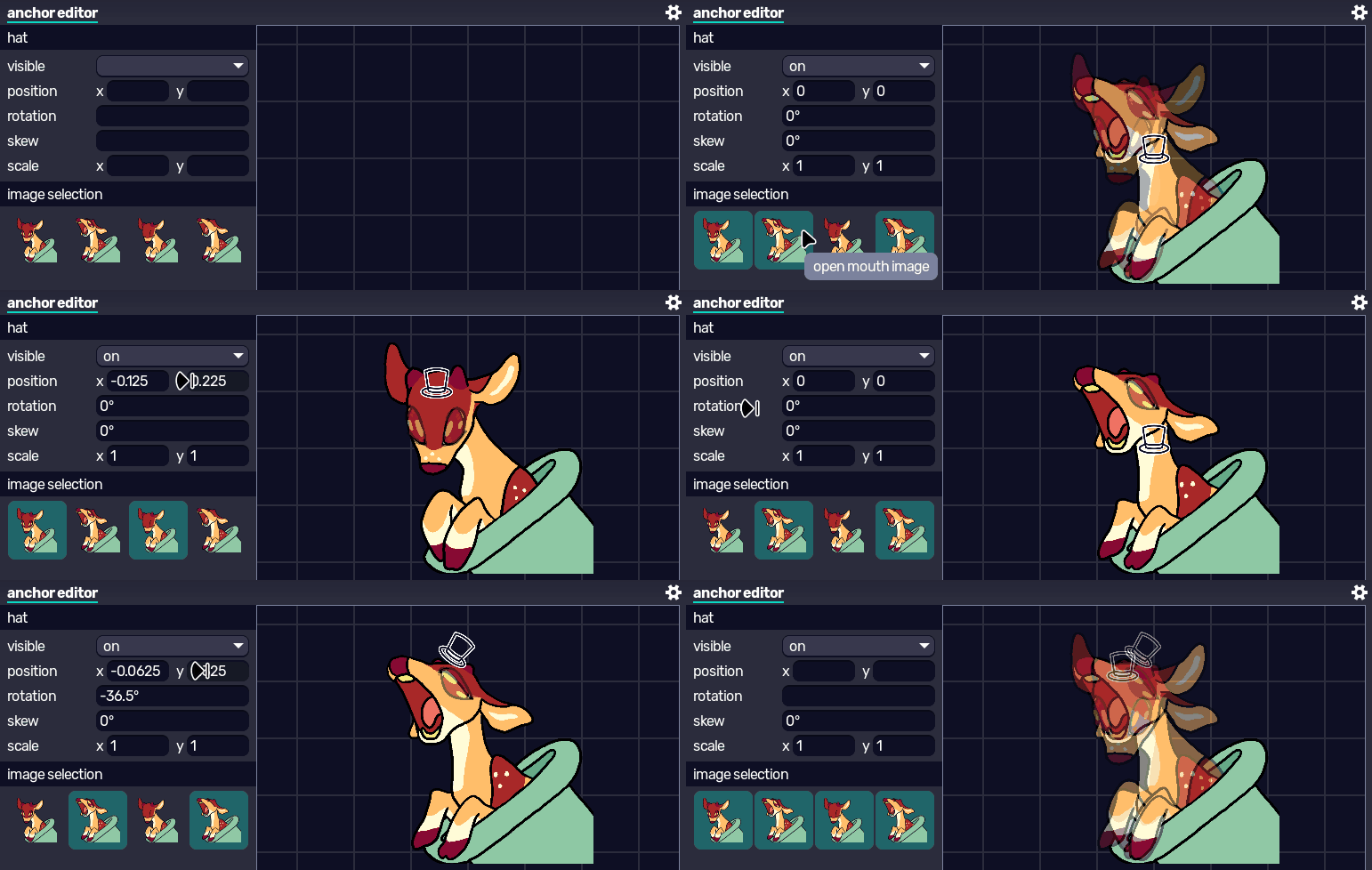
- anchor editor: lets you edit the positioning of an anchor depending on the current image. multiple images can be selected at once.
main differences
compared to editing an avatar in veadotube mini, in veadotube you can edit multiple states at once, making it a lot easier to manage an avatar with a bunch of states. managing your own effect presets also makes it easier to make your avatar more consistent in case you’re not using the built-in presets.
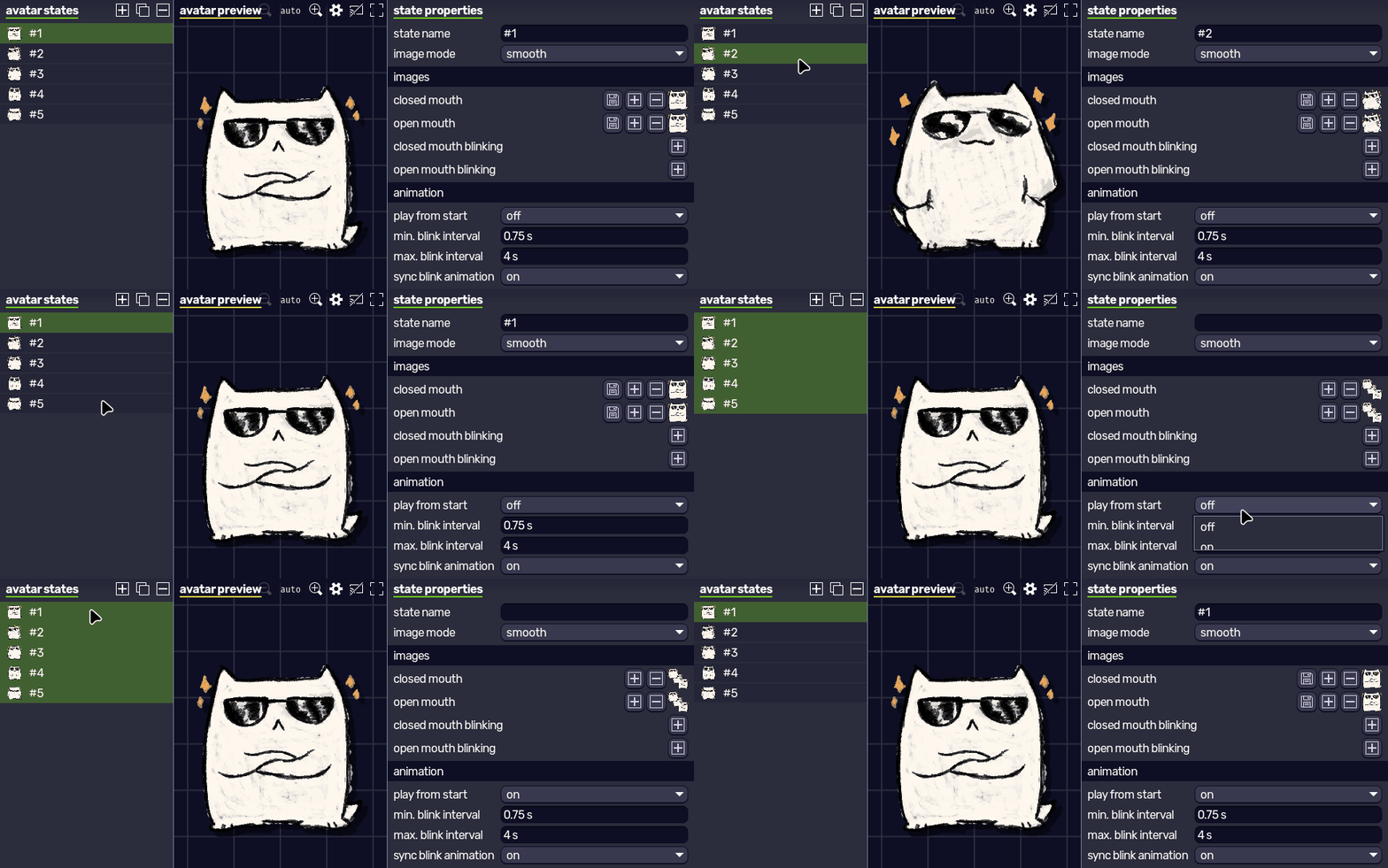
anchor editing lets you make better use of your mini avatar in a scene; while you’re already able to attach an image to your avatar in the scene editor by default, using custom anchors lets you set different positions that a given accessory would be depending on the image.
for example, if you’re creating a hat anchor and your character moves their head around between images, you can move the anchor to match the head position, so that later in a scene, the attached hat image will always be at the correct position.
while the scene editor remains the best place to stream your avatar (with scene size and frame rate control and a full node system and whatnot), you can still use the mini avatar editor to stream! in avatar preview lets you select your microphone, filter the noise, and gives two familiar sliders for adjusting the sensibility/decay. then you can either hide the UI to capture the window with  or stream directly to your streaming program with
  , refer to the OBS guide for more details.
if a scene file is open in another window and it uses the mini avatar you’re editing, it automatically reloads the .veado file upon saving.
note that, while veadotube mini autosaves your avatar in the program settings on top of letting you save it separately, the full version of veadotube does not autosave anything. make sure you’re saving  your .veado file from time to time!